How to Evaluate an AI Video Generator Before Adding It to Your Content Workflow


Suppose your team needs a short animated background for a weekly event reminder. The clip must fit a vertical layout, leave room for a date and survive a simple edit. A generator’s showcase cannot tell you whether your team can deliver that asset reliably. To evaluate the tool, take one representative assignment through generation, revision and export, then repeat it before making it part of the schedule.
Set up a trial you can compare
1. Define what an acceptable clip must do
Open a trial note before opening the generator. Describe the deliverable, the person who will use it and the conditions that would make it unusable. Keep this short enough to refer to while reviewing a clip. “Looks professional” gives a reviewer little to work with; “the moving subject stays visible and the date remains readable” gives them something to inspect.
For the event reminder, your trial might require six seconds of vertical video with a quiet area near the top for text added later in an editor. The duration is an example assignment, not a recommended limit. Decide whether you need sound, a specific reference image, or an exact object or person to remain recognizable. A decorative background and a faithful product demonstration require different evidence.
Separate requirements that can be fixed during normal editing from reasons to reject the output. Trimming a slow opening may be acceptable. A subject changing shape halfway through the usable section may mean generating again. Agree on that distinction before a striking first result tempts you to relax the brief.
2. Check the controls and terms you will actually use
Inspect the generation screen and the plan that would support this assignment. Record the selected model, duration, aspect ratio and reference options. A platform with several models can expose different controls for each, so a feature listed on the homepage is only the start of the check.
Animx’s AI Video Generator page, for example, describes text and reference-image inputs, model selection and MP4 downloads. It also describes controls tied to particular models. Those descriptions give you features to investigate in a trial; they do not establish how consistently your chosen setup will meet the brief. Record the model and settings alongside the platform name.
Read the applicable usage terms and privacy information before uploading work files. Check permission for the intended commercial use, treatment of uploaded material and any plan restrictions on downloads. Use material you are allowed to upload. If a required permission or capability is unclear, resolve that question before spending the trial budget on it.
Keep a dated note of the plan and conditions you checked.
3. Run a bounded trial and preserve every attempt
Set a time and spending limit that your team can afford. Choose a small set of representative assignments within it, including the recurring job you expect to do most often. If resources allow, repeat that job with the same prompt, reference and settings. One successful result tells you what happened once; repeated attempts reveal more about how much selection and repair the work may require.
Before pressing Generate, save the prompt and settings. Give each result an attempt number and use one row per attempt in a shared log.
| Record | What belongs in the log |
| Setup | Model, prompt, reference file and relevant settings |
| Attempt | Date, output filename and credits charged |
| Time | Queue wait, active review and editing time, recorded separately |
| Decision | Accepted, repairable or rejected, with the specific reason |
| Handoff | Final export filename and any work still required |
Keep rejected clips too. An observation such as “the object left the frame” is more useful later than an unexplained score.
When you revise, change one relevant instruction or setting at a time where practical. If you replace the prompt, reference and model together, label the output as a new setup. You can still use it, but you cannot tell which change solved the original problem. A small trial is a working sample, not a statistical guarantee of future reliability.
Review the work your team would deliver
4. Review movement and instruction following separately
Watch each candidate at normal speed, then inspect the moment where the subject moves, turns or crosses another object. A thumbnail can hide a defect that appears during motion. Ask whether the subject keeps its appearance, the background remains coherent and the movement follows the requested action.
The VBench research project separates video quality into dimensions including subject consistency, motion smoothness and temporal flickering. That is a useful distinction for a practical review: a smooth camera move can coexist with a changing subject. You do not need to reproduce the benchmark to avoid treating “quality” as one vague judgment.
Instruction following deserves its own pass. Xiao Liu and colleagues’ A Survey of AI-Generated Video Evaluation, updated in March 2026, examines alignment with human perception and with human instructions separately. Apply that distinction to your brief. A visually attractive clip can still put motion in the space reserved for the event date. Mark the missed requirement even if you like the result.
For sound-enabled work, listen through the whole clip too. Check the requested words, timing and unwanted sounds against the assignment. Do not let an attractive picture decide whether the audio is usable.
5. Test the downloaded file inside your real edit
Download the candidate and import it into the editor the team normally uses. Trim it, place the planned title or captions, and export the intended delivery format. Open that exported file and watch it at the size your audience will see. This checks the actual handoff, including framing and readability, rather than stopping at the generator’s preview.
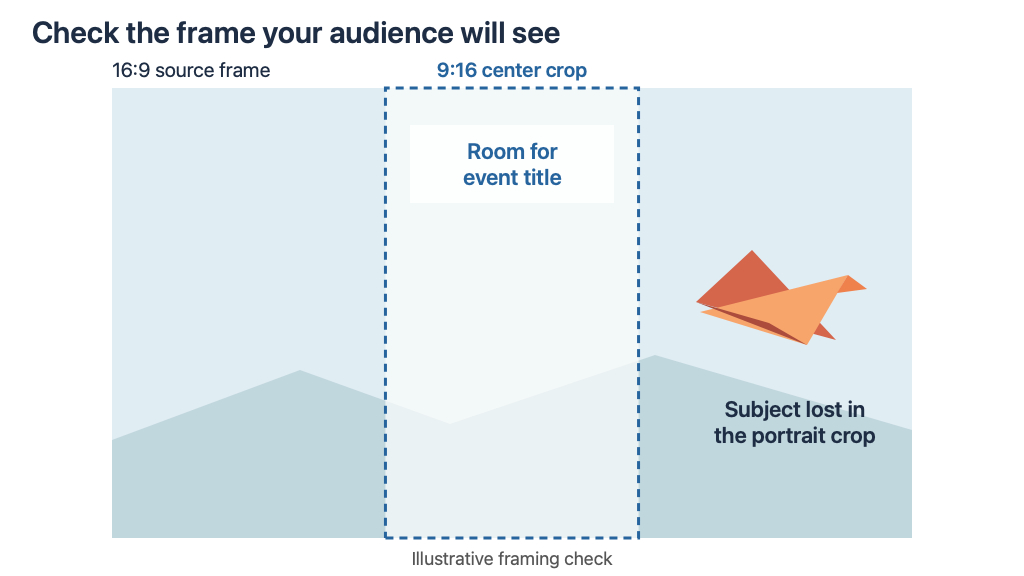
If you need both wide and vertical versions, assess both. A valid file can still have an unusable crop. In the illustration, the bird survives the wide composition but disappears from the central portrait crop. Reframing might rescue it, or you might need a different composition; record that extra work instead of treating the formats as interchangeable.
Pass the source clip, prompt, settings and brief to the teammate who will own the next version.
Have them complete the handoff without relying on your memory of which take was chosen. Missing filenames, inaccessible assets and unexplained edits are workflow costs even when the generation itself looks good.
6. Decide using accepted work and the effort behind it
Review the full trial record. Include credits spent on discarded attempts, time spent waiting, active review time and editing effort. Keep waiting and hands-on work separate: a queue may delay delivery without occupying an editor throughout. A low generation charge does not tell you how much work it took to finish an acceptable asset.
Classify the outputs as accepted, repairable or rejected using the conditions you wrote at the start. Note what “repairable” actually required. If one clip needed a crop and another needed a replacement subject, putting them in the same bucket hides a material difference. If nothing met the brief, record that plainly rather than estimating a cost for a successful clip you did not obtain.
A trial that yields no accepted work is still a result.
Make the adoption decision narrow enough to be supported by the trial. A tool might earn a place for decorative event backgrounds while remaining unproven for dialogue or exact product depictions. Save the tested setup and review it again when the model, plan or recurring assignment changes. If the next operator cannot repeat the handoff within the agreed limits, keep the existing production method available while you resolve that failure.