
How to Disable Notifications on Any Device 2026

Quick answer: To learn how to disable notifications, open your device’s Settings, go to Notifications, choose an app, and switch off Allow Notifications. For a temporary break, turn on Do Not Disturb instead. Browsers like Chrome, Safari, and Firefox have their own notification settings under Site settings, Websites, or Permissions.
That’s the short version.
In this guide, I’ll show you the exact steps for every major device. You’ll also see what the research says, because blocking everything isn’t always the smartest move.
Let’s dive in.
Quick Reference: Where to Turn Off Notifications on Every Device
Short on time? This table gives you the exact path for each platform. Bookmark it and come back whenever a new app starts spamming you.
| Device / Browser | Path to Disable Notifications | Temporary Option |
|---|---|---|
| iPhone / iPad | Settings > Notifications > [App] > Allow Notifications (off) | Focus / Do Not Disturb |
| Android | Settings > Notifications > App notifications > [App] (off) | Do Not Disturb |
| Windows 11 | Settings > System > Notifications | Do Not Disturb (Win + N) |
| Mac | System Settings > Notifications > [App] > Allow notifications (off) | Focus / Do Not Disturb |
| Chrome (desktop) | chrome://settings/content/notifications | Use quieter messaging (Android) |
| Safari (Mac) | Safari > Settings > Websites > Notifications | Deny per site |
| Firefox | Settings > Privacy & Security > Permissions > Notifications | Block per site |
| Edge | edge://settings/content/notifications | Block per site |
Note: Menu names can vary slightly by OS version and phone manufacturer.
Should You Turn Off All Notifications? What the Research Says
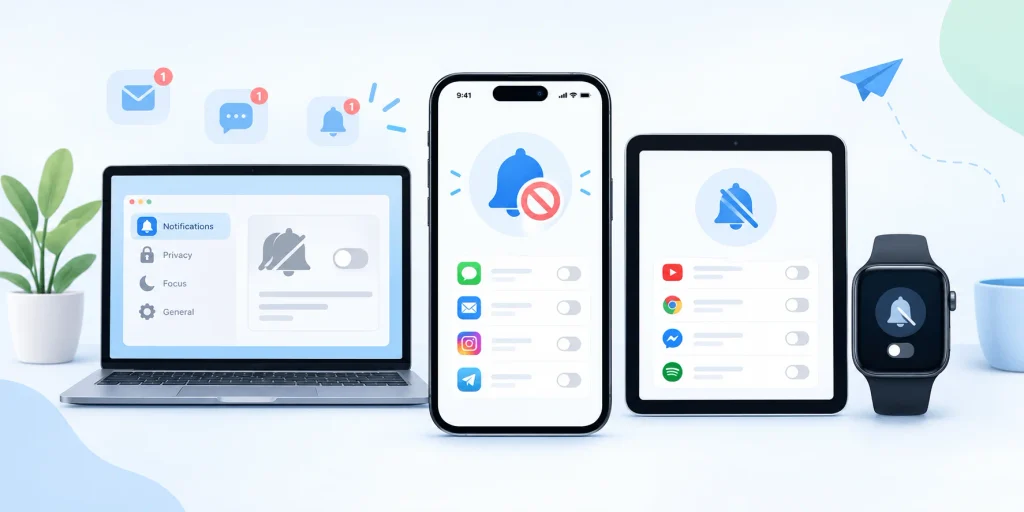
Most guides skip this part. I think it’s the most important section, because how you disable notifications decides whether it actually helps you.
The research is clear that alerts hurt focus. But it also shows that going cold turkey can backfire. Here’s the evidence.
Key Studies on Notifications and Focus
- Even ignored alerts cost you. In a 2015 study in the Journal of Experimental Psychology, people who received a phone notification were about three times as likely to make a mistake on an attention task. They didn’t even touch their phones.
- Alerts on = more inattention. A CHI study of 221 people found higher inattention and hyperactivity in the week alerts were on. That inattention predicted lower productivity and well-being.
- Batching beats blocking. In a field experiment with 237 people, those who got notifications three times a day felt less stressed and more in control. Those who got none felt more anxiety and fear of missing out (FoMO).
- Disabling doesn’t automatically cut screen time. A 2024 randomized controlled trial with 205 people found that a one-week notification ban didn’t change screen time or how often people checked their phones. It did make phone use feel more intentional.
The Keep / Batch / Turn Off Framework
Based on this research, here’s the simple system I recommend. Don’t nuke everything. Sort your apps into three buckets instead.
| Action | Apps to Include | Why |
|---|---|---|
| Keep | Calls from family, calendar, banking security, emergency alerts | Time-sensitive and important |
| Batch or delay | Email, news, messaging apps | Useful, but rarely urgent |
| Turn off | Games, shopping, social media suggestions, promotions | Built to grab your attention |
With that in place, let’s go device by device.
How to Disable Notifications on iPhone and iPad
Apple gives you three good options: turn off alerts per app, silence everything with Focus mode, or bundle alerts into a scheduled summary. These steps follow Apple’s guide to changing notification settings on iPhone and work on iOS 26 and later.
Turn Off Notifications for One App
This is the most precise method. Start with your five noisiest apps.
- Open Settings.
- Tap Notifications.
- Under Notification Style, tap the app.
- Turn off Allow Notifications.
Privacy tip: Set Show Previews to “When Unlocked” so message content stays off your Lock Screen.
Silence Everything with Focus and Do Not Disturb
Need quiet right now? According to Apple, Do Not Disturb silences calls, alerts, and notifications in one tap.
- Open Control Center. (Swipe down from the top-right corner.)
- Tap Focus.
- Tap Do Not Disturb.
To automate it, go to Settings > Focus > Do Not Disturb > Add Schedule. Apple explains more about setting up a Focus here.
Try Scheduled Summary Instead of Going Cold Turkey
This is the batching strategy from the research, built right into your iPhone. Go to Settings > Notifications > Scheduled Summary, turn it on, and pick two delivery times. I like morning and early evening.
How to Stop Notifications on Android (Including Samsung)
Android gives you a lot of control thanks to notification channels, which let you switch off specific types of alerts. As Google’s Android Help page notes, menus vary by phone, but the core steps work on Pixel, Samsung, OnePlus, and most others.
Method 1: From the Notification Shade (Fastest)
Use this the moment an annoying alert appears.
- Swipe down to open the notification shade.
- Touch and hold the notification.
- Tap Turn off notifications or the Settings gear.
- Toggle off All notifications.
Method 2: Turn Off Specific Notification Categories
Want delivery updates but not discount offers? Use notification categories. How-To Geek explains how channels work.
- Open Settings > Notifications > App notifications.
- Pick the app.
- Turn off only the categories you don’t want.
Samsung Galaxy (One UI) Steps
On Samsung phones, open Settings > Notifications > App notifications, then toggle off any app. You can also long-press a notification in the shade, just like on other Android phones.
Bonus: Newer Android versions include notification cooldown, which softens alerts when many arrive at once. Look for it under Settings > Notifications.
Turn Off Notifications on Windows 11
Windows alerts love to pop up during video calls and presentations. The steps below follow Microsoft’s official guide and apply to current Windows 11 releases, including 24H2 and 25H2.
Disable App Notifications in Settings
- Press Win + I.
- Click System > Notifications.
- Turn off the main Notifications toggle to block everything, or
- Under Notifications from apps and other senders, turn off specific apps.
Use Do Not Disturb (Formerly Focus Assist)
Do Not Disturb hides banners temporarily without changing your app settings.
- Press Win + N.
- Click the bell icon to turn it on.
- Click it again to turn it off.
To automate it, go to Settings > System > Notifications > Turn on do not disturb automatically. XDA has a helpful guide to automatic rules and priority notifications.
Turn Off Notifications on Mac
macOS works much like the iPhone. These steps follow Apple’s guide to changing Notifications settings on Mac for macOS Tahoe 26 and later.
- Open System Settings.
- Click Notifications.
- Under Application Notifications, click the app.
- Turn off Allow notifications.
Presenter tip: In the same menu, turn off notifications when mirroring or sharing the display. No more embarrassing pop-ups during client calls.
You can also hide alerts for noisy Messages conversations.
Block Website Notifications in Chrome, Safari, Firefox, and Edge
Browsers are a major source of web push notifications. Click “Allow” once, and a random site can ping you for months. Here’s how to shut it down in each browser.
Google Chrome
Based on Google’s Chrome notification help page:
On desktop:
- Type chrome://settings/content/notifications into the address bar.
- Select Don’t allow sites to send notifications.
- Remove any site you don’t trust from the allowed list.
On Android:
- Tap More > Settings > Site settings > Notifications.
- Turn the setting off at the top, or turn on Use quieter messaging.
Safari on Mac
Per Apple’s Safari guide:
- Open Safari and choose Safari > Settings.
- Click Websites, then Notifications.
- Deselect Allow websites to ask for permission to send notifications.
- Set any existing site to Deny.
Mozilla Firefox
Mozilla confirms that web push in Firefox is always opt-in.
- Go to Settings > Privacy & Security > Permissions.
- Click Settings next to Notifications.
- Choose Block for unwanted sites.
- Check Block new requests asking to allow notifications, then click Save Changes.
Microsoft Edge
- Type edge://settings/content/notifications into the address bar.
- Turn off Ask before sending to stop new requests.
- Remove or block sites under Allow.
How to Mute Notifications in WhatsApp, Instagram, and Gmail
Sometimes you don’t want to silence an entire app, just part of it. These popular apps have their own in-app notification settings, which work on top of your system settings. Menu names change with app updates, so look for similar wording.
- Mute one chat: Open the chat, tap the contact or group name, tap Mute, then choose a duration (including Always).
- Turn off all alerts: Go to Settings > Notifications and switch off message and group notifications.
Using WhatsApp on your computer? Alerts from WhatsApp Web are controlled by your browser’s notification settings, which I covered above. For a full walkthrough, see our complete WhatsApp Web guide.
Go to your profile > menu (☰) > Settings > Notifications and turn on Pause all. You can pause for anywhere from 15 minutes to 8 hours, or turn off specific types like likes and comments.
Gmail
In the Gmail app, open Settings, choose your account, and set Notifications to None (or High priority only if you want important emails to get through).
If email overload is the real problem, an AI email assistant can help you sort and prioritize your inbox, so fewer messages need to ping you at all.
How to Turn Notifications Back On
Changed your mind? No problem. Every method above can be reversed in seconds.
- iPhone: Settings > Notifications > [App] > turn Allow Notifications back on.
- Android: Settings > Notifications > App notifications > toggle the app on.
- Windows 11: Settings > System > Notifications > toggle back on.
- Mac: System Settings > Notifications > [App] > turn Allow notifications on.
- Browsers: Return to the same site settings page and change Block to Allow.
Just switched phones? After you transfer your contacts to a new phone, it’s the perfect moment to review your notification settings from scratch and only allow the apps you really need.
Troubleshooting: Why Am I Still Getting Notifications?
Followed every step and still getting pinged? Frustrating, I know. It’s usually one of these culprits:
- In-app settings override system settings. Check the app’s own notification menu.
- Your iPhone is mirroring to your Mac. Apple explains how to manage iPhone notifications on Mac.
- Focus exceptions. Allowed people and apps can break through Do Not Disturb.
- Emergency alerts are separate. Wireless emergency alerts have their own settings. I strongly recommend leaving them on.
- Work or school devices. An administrator may control your notification policies.
Frequently Asked Questions
How do I disable all notifications at once?
Turn on Do Not Disturb. On iPhone, use Control Center > Focus. On Android, use Quick Settings. On Windows 11, press Win + N and click the bell. On Mac, use Control Center > Focus.
What’s the difference between Do Not Disturb and turning off notifications?
Do Not Disturb hides alerts temporarily, and they wait for you in Notification Center. Turning off notifications stops an app from sending alerts at all until you switch them back on.
Will I still get emergency alerts if I turn off notifications?
Usually, yes. Emergency alerts are controlled separately from app notifications on both iPhone and Android. Check them under your phone’s Notifications settings.
How do I stop website notifications?
Block them in your browser. In Chrome, go to chrome://settings/content/notifications. In Safari, go to Safari > Settings > Websites > Notifications. In Firefox, go to Settings > Privacy & Security > Permissions.
Does turning off notifications reduce screen time?
Not necessarily. A 2024 randomized trial found no change in screen time after one week, but participants felt their phone use was more intentional.
Is it better to batch notifications than turn them off?
For many people, yes. Research found that receiving notifications three times a day reduced stress, while turning them off completely increased anxiety and FoMO.
Related Guides
- WhatsApp Web: The Complete Guide
- Best AI Email Assistant Tools
- How to Transfer Contacts to a New Phone
Conclusion: Take Back Control of Your Attention
Now you know how to disable notifications on your iPhone, Android, Windows PC, Mac, and every major browser, plus how to mute individual apps and turn alerts back on.
Here’s my final advice: don’t block everything. Use the Keep / Batch / Turn Off framework. Silence the noise, batch the non-urgent alerts, and keep what truly matters.