
How to Use Command Prompt: Complete Guide (2026)


Command Prompt is Windows’ built-in text-based tool for controlling your operating system by typing commands instead of clicking through menus. You open it by typing cmd into the Windows search bar, and from there you can manage files, check your network, repair system errors, and automate tasks that would otherwise take a dozen clicks. This guide walks you through everything, from opening it for the first time to running the commands that actually make your life easier.
You don’t need to be a programmer to use this thing. You just need a little patience and a willingness to type carefully.
What Is Command Prompt, Really?
Command Prompt (often shortened to CMD) is the Windows version of a command-line interface, a way of controlling your computer through text rather than a mouse. It’s the modern descendant of MS-DOS, the operating system that ran PCs long before Windows had icons or a Start menu.
Where CMD Comes From
Officially, it’s called the Windows Command Processor, and its executable file is named cmd.exe. Here’s the thing people get wrong: they assume CMD is outdated or only for “hackers.” It isn’t. It’s still baked into every copy of Windows, and IT professionals rely on it daily for troubleshooting. If you want a deeper look at how it compares to the newer scripting shell Microsoft now ships alongside it, our PowerShell guide breaks that down in detail.
Quick Facts Worth Knowing
- CMD reads instructions you type and executes them immediately
- It can also run saved lists of commands called batch files (files ending in .bat)
- Windows ships with over 280 built-in commands, according to phoenixNAP’s command reference
- It’s different from PowerShell, a newer and more powerful shell that also comes with Windows
Once you get past the intimidating black screen, it starts to feel kind of satisfying. There’s a reason longtime IT folks never fully let go of it.
How to Open Command Prompt on Windows
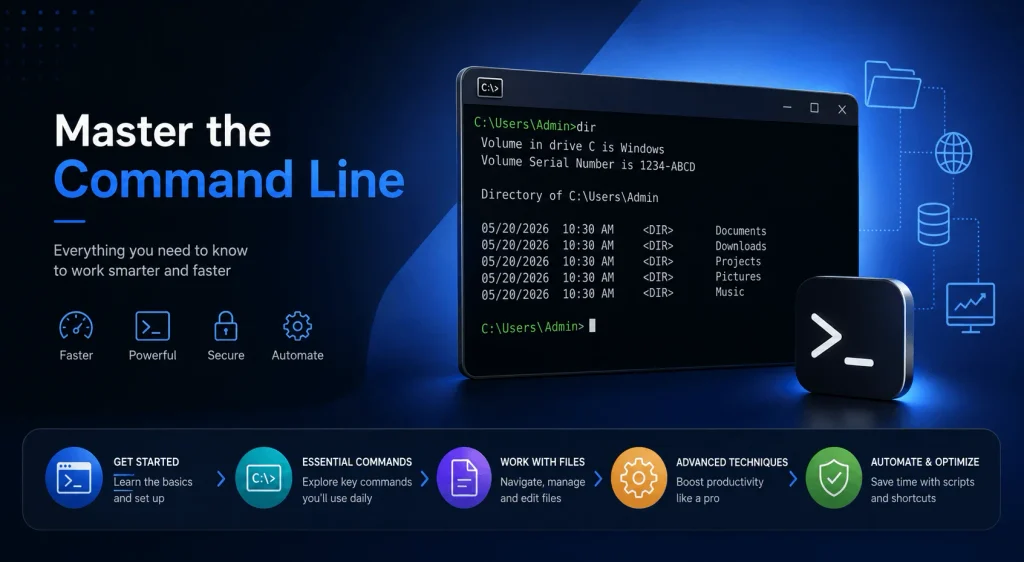
Opening Command Prompt is genuinely the easiest part of this whole guide. There are several routes, and you’ll probably land on one you like best after trying a few.
Step-by-Step: Opening CMD
- Use the search bar. Press the Windows key, type cmd, and hit Enter. This works on every modern version of Windows.
- Use the Run dialog. Press Windows + R, type cmd, and press Enter. Quick and keyboard-only.
- Right-click the Start button. On Windows 10 and 11, this gives you a menu with a Terminal option that opens a CMD-compatible shell.
- Use File Explorer. Navigate to a folder, click the address bar, type cmd, and press Enter. This opens Command Prompt already pointed at that exact folder location.
That last trick saves a ton of time if you’re working inside a specific project folder.
Running CMD as Administrator
Some commands, like the ones that repair system files, need elevated permissions. To open CMD as an administrator, right-click the Command Prompt icon and select “Run as administrator.” Windows will ask for confirmation. Click yes, and now you’ve got full access to commands that a standard window won’t let you touch. If something on your machine still won’t cooperate after that, check our Windows troubleshooting hub for deeper fixes.
Understanding the Command Prompt Interface
When the window pops open, you’ll see a bit of version info followed by a line that looks something like C:\Users\YourName>. That’s your current location in the file system, and it matters more than you’d think.
Why Your Current Location Matters
Per the Digital Preservation Coalition’s command line guide, most commands that involve files or folders act on whatever directory you’re currently sitting in. So before you delete something or run a script, glance at that prompt line and make sure you’re where you think you are.
One more thing worth knowing upfront: CMD is picky. Type a command wrong, and it just tells you it’s “not recognized.” It won’t guess what you meant. That’s honestly a good thing, because it means you’re never one typo away from disaster, unlike, say, mistyping a delete command that it does recognize.
Essential Command Prompt Commands You Need to Know
This is the meat of the guide. I’m going to break these down by category because that’s how you’ll actually remember them.
File and Directory Navigation
These are the commands you’ll use constantly, so they’re worth memorizing first.
- dir — lists every file and folder in your current directory
- cd — changes your current directory (example: cd Documents)
- cd.. — moves you up one folder level
- mkdir or md — creates a new folder
- rmdir or rd — deletes an empty folder
- cls — clears the screen so you’re not staring at a wall of old text
Try this right now if you’ve got CMD open: type dir, hit Enter, then type cd Desktop and dir again. You’ll instantly see how navigation works.
File Management Commands
Once you’re comfortable moving around, you’ll want to actually do things with your files.
- copy — duplicates a file to another location
- xcopy — copies files and entire folder structures, subfolders included
- move — relocates a file or renames a folder
- del — deletes a file (there’s no recycle bin here, so double-check before hitting Enter)
- ren — renames a file
- type — displays the contents of a text file right in the window
A word of caution on del: unlike deleting through File Explorer, CMD deletions skip the recycle bin entirely. MarkTechPost’s terminal guide specifically warns that command-line deletions are permanent, so slow down before you run this one.
System Information and Diagnostic Commands
These commands help you troubleshoot problems and understand what’s going on under the hood of your machine.
- systeminfo — pulls a full report on your Windows version, hardware, and configuration
- tasklist — shows every process currently running, similar to Task Manager
- taskkill — force-closes a stuck program (example: taskkill /im notepad.exe /f)
- driverquery — lists all installed device drivers
- sfc /scannow — the System File Checker, which scans for and repairs corrupted system files
- chkdsk — checks your hard drive for errors and can fix them with the /f switch
If your PC has been acting weird lately, sfc /scannow is genuinely one of the first things worth trying. It takes a few minutes but often clears up mystery glitches.
Networking Commands
Whenever your Wi-Fi is acting up, these commands are the first place to look.
- ipconfig — shows your network configuration, including your IP address
- ping — tests whether you can reach a specific website or device
- tracert — traces the exact route your data takes to reach a destination, useful for spotting where a connection is failing
- netstat — displays active network connections
According to GeeksforGeeks’ command prompt tutorial, combining ping and tracert is one of the most reliable ways to diagnose whether a connectivity issue is on your end or somewhere further down the line.
Command Prompt vs Terminal on Mac and Linux
Windows isn’t the only operating system with a command-line tool. Mac and Linux use a program called Terminal, and while the commands look different, the core idea is identical: you type instructions, the system executes them.
If you switch between operating systems, or you’re following a tutorial written for the wrong one, this table saves a lot of confusion.
| Task | Windows CMD | Mac/Linux Terminal |
|---|---|---|
| List files | dir | ls |
| Change directory | cd | cd |
| Copy a file | copy | cp |
| Move/rename a file | move | mv |
| Delete a file | del | rm |
| Clear the screen | cls | clear |
| View command history | doskey /history | history |
According to the MarkTechPost beginner’s guide, the biggest danger on either platform is the same: delete commands are permanent, with no recycle bin or trash to recover from a mistake.
Useful Command Prompt Keyboard Shortcuts
A handful of shortcuts make working in CMD noticeably faster once they become muscle memory.
- Up arrow — cycles back through previously typed commands
- Tab — autocompletes a file or folder name as you type
- Ctrl + C — cancels a command that’s currently running
- F7 — opens a scrollable list of your command history
- Ctrl + Home / Ctrl + End — jumps to the start or end of a long output
These are small, but they add up fast once you’re running dozens of commands in a single session.
A Quick-Reference Table for Common Commands
| Command | What It Does | When to Use It |
|---|---|---|
| dir | Lists files/folders | Checking what’s in a directory |
| cd | Changes directory | Navigating your file system |
| copy | Copies a file | Duplicating documents |
| del | Deletes a file | Removing unwanted files |
| ping | Tests connectivity | Diagnosing internet issues |
| sfc /scannow | Repairs system files | Fixing random Windows errors |
| tasklist | Lists running processes | Finding what’s using resources |
| ipconfig | Shows network settings | Checking your IP address |
Bookmark this table. You’ll come back to it more than you expect.
How to Write and Run a Batch File
Once basic commands feel comfortable, batch files are the natural next step. They let you string several commands together into a single script that runs with one double-click.
Step-by-Step: Creating a Batch File
- Open Notepad (or any plain text editor).
- Type the commands you want to run, one per line. For example: echo Hello, then pause.
- Save the file with a .bat extension, like myscript.bat, making sure “Save as type” is set to “All Files.”
- Double-click the file, or type its name into CMD, to run it.
Batch files are how a lot of routine IT tasks get automated. Once you get the hang of chaining a few commands, you’ll wonder why you were doing repetitive tasks manually.
Command Prompt vs PowerShell: What’s the Difference?
You’ll notice Windows also ships with PowerShell, and people often ask which one they should be using. The short version: CMD is simpler and mostly command-based, while PowerShell is built on scripting and can handle more complex automation and system administration tasks.
For basic file navigation, quick network checks, and simple troubleshooting, Command Prompt does the job just fine. If you start getting into heavier scripting or managing multiple systems at once, PowerShell becomes the better tool. Our full PowerShell guide goes deeper into when that switch makes sense. You don’t have to pick one forever. A lot of people bounce between both depending on the task.
Common Command Prompt Mistakes to Avoid
Here are the mistakes that trip up most beginners.
- Running del without checking your directory first. Since deletions skip the recycle bin, this is the single riskiest habit.
- Forgetting spaces matter. Commands and their switches are picky about exact syntax, so an extra or missing space can throw an error.
- Not running as administrator when needed. Commands like sfc and chkdsk will refuse to run without elevated permissions.
- Closing the window mid-command. Let long-running commands like chkdsk finish, especially ones tied to your hard drive.
- Assuming CMD and PowerShell commands are interchangeable. Some overlap, but plenty don’t.
Slow down, read the prompt line before you act, and you’ll avoid nearly all of these. For a broader troubleshooting checklist beyond CMD itself, our Windows troubleshooting hub covers the rest.
Frequently Asked Questions
Is Command Prompt the same as PowerShell?
No. They’re related but separate tools. CMD is the older, simpler command-line interpreter, while PowerShell is a more advanced scripting shell also built into Windows.
Can I undo a command in CMD?
Generally, no. There’s no universal undo. File deletions in particular are permanent, so always double-check your location and target file before running a delete command.
Do I need administrator access for every command?
No, most basic navigation and file commands work fine in a standard window. Admin access is only needed for system-level commands like sfc or certain network configuration changes.
How do I see a list of previously typed commands?
Press the up arrow key to cycle back through your command history in the current session, or press F7 for a scrollable list.
Is it safe for beginners to use Command Prompt?
Yes, as long as you’re careful with delete and system-modification commands. Sticking to navigation and read-only commands like dir and ipconfig while you’re learning is a smart way to build confidence.
What’s the Mac/Linux equivalent of Command Prompt?
Terminal. It uses different command names (ls instead of dir, rm instead of del), but works on the same principle of typing instructions instead of clicking.
Wrapping Up
Command Prompt looks intimidating the first time you open it, but it’s really just a different way of talking to your computer. Once you know a handful of core commands: dir, cd, copy, ping, sfc, you’ve got most of what you’ll ever actually need for day-to-day troubleshooting and file management.
Start small. Open CMD, poke around with dir and cd, and build from there. You’ll be surprised how quickly it starts feeling natural instead of scary.