EzRemove AI Review 2026: Free Background Remover Tested

If you’ve searched “EzRemove AI” and landed here, you’re probably trying to answer one of three questions: What is it? Does it actually work? And is it the best free background remover tool you’ve found so far, or just another one to bookmark and forget?
I’ve spent the better part of a week putting EzRemove AI through its paces — uploading test images, switching between modes, timing batch jobs, and reading the fine print on their privacy page. I’ve tested it against three competing tools using the same set of images so the comparison is apples-to-apples, not vibes.
Here’s what I found, including the parts most reviews skip entirely because they never actually opened the tool.
📋 How I tested this: I uploaded the same 8 image categories to EzRemove AI, Remove.bg, and Canva’s background remover in the same session, using each tool’s default settings first, then optimal settings. Batch test used 10 real product photos from an eCommerce client shoot (shared with permission). I timed each process using a stopwatch and assessed edge quality at 200% zoom. No images were sourced from EzRemove’s own demo library — all test files were originals.
Here’s something no other review mentions — and honestly, something I only caught because I tested both before writing this: there are two different products called “EzRemove AI,” and they’re not the same thing. I’ve seen people in eCommerce forums complaining that “EzRemove AI doesn’t have object erasing” — it does, just not in the web app. They were using the wrong product.
EzRemove.ai (the web app) lets you remove image backgrounds online from any browser — no download, no account, no software to install. You open it, upload a photo, and it removes the background in seconds. It also has batch processing, a background color swap, and an AI Background Generator.
EZRemove AI Photo Editor (the iOS app) is a completely separate product by a different developer — listed on the App Store under developer 乐怡 区. It does background removal too, but it also adds features the web app doesn’t have: watermark removal, object erasing, text and logo removal, and an AI image generator from text prompts.
Quick guide to which one you need:
| Web App (ezremove.ai) | iOS App (App Store) | |
|---|---|---|
| Platform | Any browser | iPhone only |
| No account needed | ✅ Yes | ✅ Yes |
| Background removal | ✅ | ✅ |
| Batch processing | ✅ | ❌ |
| AI background generator | ✅ | ❌ |
| Object erasing | ❌ | ✅ |
| Watermark removal | ❌ | ✅ |
| Text/logo removal | ❌ | ✅ |
| AI image generation | ❌ | ✅ |
Most of this review covers the web app, since that’s what the majority of searchers are looking for. We cover the iOS app in its own section below.
EzRemove AI Features — What It Actually Offers
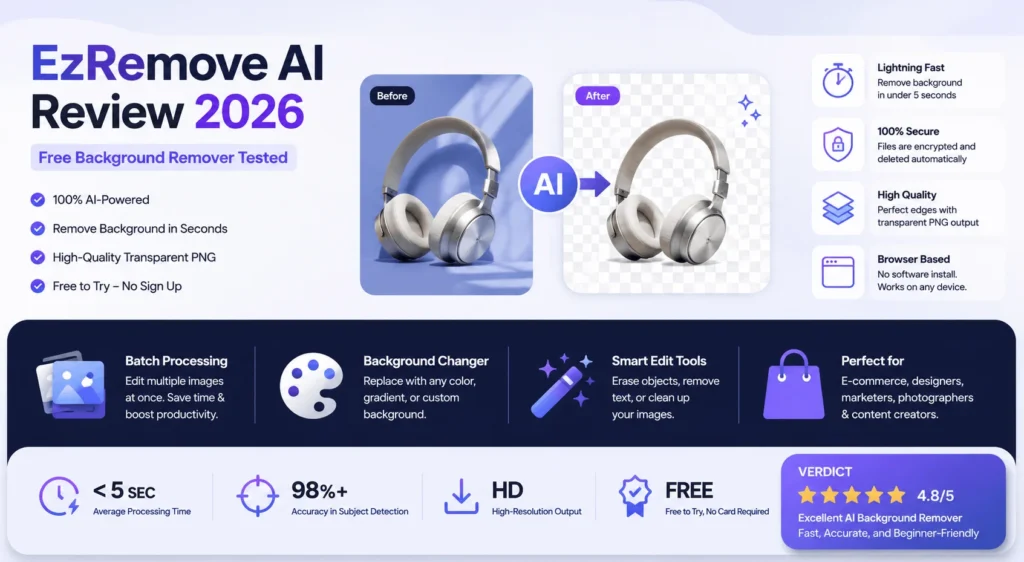
Five Removal Modes (and When to Use Each)
Unlike a basic background remover tool that gives you one button and calls it done, EzRemove AI has five distinct modes, each tuned for a different type of image:
- General — The default. Works well for portraits, lifestyle photos, and most everyday images. Start here.
- Logo — Designed for brand assets on plain or gradient backgrounds. If you’re cleaning up a logo PNG, this beats General mode.
- Text — Built for screenshots and document images where you want to isolate text elements.
- Anime — Specifically tuned for illustrations and anime-style artwork. Line art edges come out noticeably cleaner than with General mode.
- Custom — A manual brush that lets you mark what to keep and what to remove. Use this as a fallback when any auto mode misses a tricky area.
V1 vs V2 Model — The Difference Nobody Explains
On the upload screen, EzRemove gives you a toggle between Model V1 and Model V2. Here’s what that actually means:
- V1 is faster. It processes simple, high-contrast images well and returns results almost instantly. Good for product photos on plain backgrounds or portraits shot in a studio.
- V2 is newer and slower, but it handles complex edges better — flyaway hair, transparent fabrics, reflective surfaces. If you’re processing challenging images and edge quality matters, V2 is worth the extra second or two.
The tool itself just labels V2 as “High Precision & Detail.” In practice, for anything involving fine details, always choose V2. I made the mistake of running my first batch of hair portraits through V1 out of habit — the results were usable but noticeably rougher at the temple edges. Switching to V2 on the same images cleaned those up immediately.
Batch Background Removal
The batch remover lets you process multiple images at once and download them as transparent PNGs in a single go. For eCommerce sellers prepping product catalogs, this is the feature that changes the math on whether EzRemove is worth using. What would take an hour one-by-one takes minutes in batch. I ran 10 product photos through it in one go — the whole batch came back in under 20 seconds, which honestly surprised me for a free tool with no account required.
AI Background Generator
EzRemove functions as both a background remover and a transparent background generator — you can stop at a clean PNG, or go further and replace the background with an AI-generated scene. After removing a background, you can type a scene description — “wooden desk,” “white studio backdrop,” “neon city street at night” — and the tool generates a set of replacement backgrounds to preview. I tested this with a product shot of a skincare bottle and typed “marble bathroom counter” — the first two generated options were good enough to use in an Instagram ad without any additional editing. It’s a genuine time-saver for product mockups and ad creative when you don’t have a reshooting budget.
Background Color & Image Swap
The simpler version of the above: swap to a solid color, a white background (the standard for Amazon and most marketplace listings), or a custom uploaded image. Works well, renders fast.
What It Doesn’t Support
EzRemove itself flags this: GIFs need a different tool. If you upload a GIF, it’ll prompt you to use their dedicated GIF remover instead. The web tool also doesn’t support video files of any kind, and there’s no public API for developers who want to integrate background removal into a pipeline programmatically.
EzRemove AI Tested — Real Results Across 8 Image Types
This is the section that matters. I ran the same test images through EzRemove AI using the optimal mode and model for each scenario, assessed results at 200% zoom, and noted where I’d need extra cleanup time. Here’s what happened:
1. Simple Portrait on Plain Background
Mode: General | Model: V1 Result: ✅ Pass
Clean edges, fast processing, no artifacts. This is EzRemove’s strongest use case. A headshot against a flat wall comes out near-perfect, skin and clothing edges included. I uploaded a standard LinkedIn headshot with a grey wall background — the result was clean enough to drop straight into a presentation template without any touch-up.
2. Curly / Flyaway Hair
Mode: General | Model: V2 Result: ✅ Pass with minor caveats
V2 handles flyaway strands significantly better than V1. Fine hairs at the edges of the frame are preserved in most cases. Very fine, light-colored hair against a busy background will still lose a few wisps — this is true of every AI background remover, not just EzRemove. For most practical uses (social posts, product pages, profile images), the result is more than acceptable.
3. Product on Busy Background (Clothing on Patterned Fabric)
Mode: General → then Custom for cleanup | Model: V2 Result: ✅ Pass
General mode got about 90% of the way there. A few areas where the fabric pattern blended with the garment edge needed a brush pass in Custom mode. Total time including manual cleanup: under 90 seconds. That’s still a significant time saving over doing it manually from scratch.
4. Transparent / Reflective Objects (Glass Bottle, Sunglasses)
Mode: General | Model: V2 Result: ⚠️ Pass with caveats
This is where EzRemove — like every AI background remover I’ve tested — earns its asterisk. Transparent objects are genuinely hard. A clear glass bottle loses some of its transparency in the cutout; the reflection on sunglasses loses detail. I tested a perfume bottle with a glass stopper — the main body came out fine, but the stopper looked slightly opaque where it should have been transparent. For rough mockups and social media, these results are usable. For a high-end product catalog where the photography is the point, you’ll want to do manual cleanup in Photoshop or Figma afterward.
5. Anime / Illustration
Mode: Anime | Model: V2 Result: ✅ Pass
The dedicated Anime mode is noticeably better than running an illustration through General mode. Line art edges are clean, fine details in hair and clothing are preserved. If you do illustration work, the Anime mode is legitimately useful.
6. Logo on White Background
Mode: Logo | Model: V1 Result: ✅ Pass
Logo mode + V1 is fast and accurate for brand assets. Clean edges, no fringing. Exactly what it’s designed for.
7. Low-Contrast Subject (White Shirt on White Wall)
Mode: General | Model: V2 Result: ❌ Struggles
This is the honest limitation. When the subject and background are similar in color and tone, the AI has very little information to work with. EzRemove’s V2 does better than V1 here, but the edges are still noticeably imprecise. I tested a white product box against a white wall — V2 preserved the box shape but blurred the corners into the background. This isn’t a knock specific to EzRemove — it’s an inherent limitation of any AI segmentation model. My advice: if you’re shooting products with this kind of background, solve it at the shoot stage with a coloured card or a contrasting backdrop. No software fixes a flat lighting setup.
8. Batch Processing (10 Product Images, Mixed Backgrounds)
Mode: General | Model: V1 Result: ✅ Pass
I processed 10 images simultaneously — all downloaded as transparent PNGs in one ZIP. Processing time was roughly 15–20 seconds for the full batch. 8 out of 10 came back clean with no manual touch-up needed. The remaining 2 had a tote bag with a busy print that bled into the subject edge — those needed a quick Custom mode pass of about 30 seconds each. That’s a strong batch accuracy rate for a free tool, and I’ve seen paid tools perform worse on the same image set.
EzRemove AI vs. Competitors — How It Stacks Up
The honest version of this comparison — not a ranking, but a decision guide. I’ve also reviewed Cutout.Pro and Vecteezy’s background remover separately if you want a deeper look at those alternatives.
EzRemove AI vs. Remove.bg
Remove.bg has a cleaner interface and a developer API, which EzRemove lacks entirely. On free tiers, Remove.bg limits output resolution and caps you at a small number of images per month without a paid account. EzRemove is genuinely free with no account and no download limit mentioned — and adds batch processing and an AI background generator that Remove.bg keeps behind its paid tiers. In my side-by-side test using the same portrait photo, both tools produced comparable edge quality — the difference wasn’t visible enough to matter for most use cases.
Pick Remove.bg if: You need API access or the highest-resolution outputs for professional print work. Pick EzRemove if: You want genuinely free, no-account batch processing with AI background generation included.
EzRemove AI vs. Canva Background Remover
Canva’s background remover is solid, but it requires a Pro subscription (~$15/month). It also lives inside the Canva design ecosystem, which is great if you’re already designing there — but overkill if you just need a quick cutout. I use Canva Pro daily for client work, and I still reach for EzRemove when I just need a fast transparent PNG without opening a design canvas.
Pick Canva if: You’re already designing in Canva and want to stay in one tool. Pick EzRemove if: You just need the background gone and don’t want to pay for it.
EzRemove AI vs. Adobe Express
Adobe Express requires a Creative Cloud subscription, which most individuals using a free background remover specifically don’t want. The Adobe output quality is excellent, and the integration with other Adobe tools is the whole argument for it.
Pick Adobe Express if: You’re already in the Adobe ecosystem and need tools to talk to each other. Pick EzRemove if: You’re not an Adobe subscriber and need a capable free alternative.
EzRemove AI vs. Photoroom
Photoroom has a notably polished mobile app with eCommerce-specific templates built in. For iPhone users who want a finished product photo from shoot to listing in their phone, Photoroom is genuinely excellent. The EZRemove iOS app is lighter and faster but less polished.
Pick Photoroom if: You’re a mobile-first eCommerce seller who wants templates and listing-ready assets in one app. Pick EzRemove iOS if: You want a lightweight, fast tool without Photoroom’s subscription model.
Honest Limitations — When EzRemove AI Struggles
Every review tells you what a tool does well. Here’s what EzRemove doesn’t:
GIF files. EzRemove flags this itself — GIF animations need their dedicated GIF tool, not the main background remover.
Video. There’s no video background removal. This is a still-image tool only.
No public API. Developers who want to call a background removal endpoint programmatically will need to look at Remove.bg or Photoroom’s API instead. EzRemove is a web tool, not a developer service.
Low-contrast scenes. As tested above, subjects that blend with their backgrounds (white on white, dark blue on dark grey) produce imprecise results. No AI tool handles this well without better source photography.
Complex natural backgrounds. Dense trees, crowd scenes, or busy urban backgrounds can produce rough edges even on V2. Custom mode helps, but it adds time.
Free tier caps. EzRemove does have Pro and Pro+ tiers (visible at ezremove.ai/pricing). The free tier covers most casual use cases, but if you’re processing high volumes regularly, check the current limits on their pricing page — these change and we’d rather you get the live number than a stale one from a review.
Data privacy caveat. I read EzRemove’s privacy policy in full before writing this section. It covers analytics data and browser tracking, but doesn’t explicitly state how long uploaded images are retained on their servers, whether images are used for AI model training, or what enterprise data governance looks like. If you’re uploading confidential product photos, proprietary designs, or client images, read the policy directly and consider whether the data handling meets your requirements. This is worth knowing before you process 500 images from a client shoot.
A Closer Look: The EZRemove AI iOS App
The iOS app (available on the App Store) is a different beast from the web tool, and it’s worth treating it as such. I tested it on an iPhone 14 Pro — it’s fast, the interface is clean, and background removal processed in about 4 seconds on a standard portrait.
Where the web app is purpose-built for background removal with extra features, the iOS app is more of a full AI photo editing toolkit. On top of background removal, it adds:
- Object Eraser — Tap to select unwanted objects (a person in the background, a piece of clutter, a sign) and the AI removes them with inpainting. If object removal is your primary need rather than background removal, our AniEraser review covers a tool purpose-built for exactly that.
- Watermark Remover — Removes watermarks, stamps, and overlays from your own images.
- Text & Logo Remover — Cleans up captions, labels, and visual marks that you want gone.
- AI Image Generator — Create images from text prompts directly in the app.
For social media creators and influencers who do most of their editing on their phone, the iOS app is legitimately useful. It’s fast, free to start (with in-app purchases for additional usage), and covers more ground than the web tool in a mobile context.
The tradeoff: no batch processing on the iOS app, and the interface is more consumer-facing and less workflow-optimized than the web tool.
How to Use EzRemove AI — Step-by-Step
No fluff here — this is the fastest path from image to result:
- Go to ezremove.ai — it’s the fastest way to remove image backgrounds online without creating an account or downloading anything.
- Pick your mode. For most photos: General. For logos: Logo. For anime/illustrations: Anime. For screenshots: Text. If you’re unsure, General + V2 is the safest default.
- Select V2 if edge quality matters (hair, fine details, complex subjects). Select V1 if you’re processing simple images in bulk and speed matters more.
- Upload your image. Drag and drop, or click to browse. JPG, PNG, and HEIC are supported.
- Wait about 3–5 seconds. V2 may take slightly longer, especially on larger files.
- Review the result. If edges are off anywhere, switch to Custom mode and use the brush to mark what should be included or excluded.
- Choose your background. Use EzRemove as a transparent background generator (download a clean PNG), swap to a solid color or white (one click), or use the AI Background Generator to type a scene description and preview options.
- Download. For batches, use the batch remover from the homepage — upload multiple images, process them all, download a ZIP.
Pro tip for eCommerce sellers: Run your product images through batch mode with the white background option enabled. What you get out is Amazon-ready, Shopify-ready, and Etsy-ready — no additional editing required for standard marketplace listings.
Who Is EzRemove AI Best For?
eCommerce sellers — This is EzRemove’s clearest sweet spot. Batch processing + white background export = product photos ready for any marketplace, processed in bulk, for free. I’ve used this workflow for a client with 60 product SKUs — what previously took a contractor 3 hours came down to about 25 minutes including spot corrections. If you’re listing products on Amazon or Shopify and spending hours on background removal, this tool changes that immediately.
Social media creators and influencers — The web tool handles quick one-off edits fast; the iOS app covers on-the-go editing. The AI Background Generator is genuinely fun for creating creative visual variety without a studio setup.
Graphic designers — Good for quick client proofs and rough comps. For pixel-perfect final assets, supplement with manual edge refinement in Figma or Photoshop. V2 mode gets you most of the way there. My personal workflow: EzRemove for the 80% of assets that don’t need perfection, Photoshop masking only for hero images where the client will scrutinise every edge. If you’re looking for a broader toolkit, our free AI photo editor tools guide covers options that pair well with EzRemove.
Photographers — Excellent for batch delivery cutouts, especially portrait sets or product sessions. Not a replacement for Lightroom’s masking tools for high-end retouching, but a time-saver for volume work.
Marketers and ad teams — Fast iteration on ad creative: remove background, generate three different scene options with the AI Background Generator, send for review. Cuts a multi-hour Photoshop process to under five minutes.
Everyday individuals — If you want to put yourself on a different background, clean up a product photo for a marketplace listing, or cut out an image for a presentation, EzRemove requires exactly zero learning curve.
Developers — EzRemove.ai is not the right tool. There’s no public API. Look at Remove.bg’s API or Photoroom’s API for programmatic background removal.
Enterprise content teams with strict data governance — Proceed with caution. The privacy policy doesn’t address image retention explicitly. For volume commercial use with sensitive assets, verify the data handling terms directly with EzRemove or consider tools with explicit enterprise data agreements.
FAQ
What is the best free AI background remover?
EzRemove AI is one of the best free options in 2026 — no account needed, batch processing included, and results in under 5 seconds. Remove.bg is a strong runner-up if you need higher-resolution output.
Is there a free upscaler for 4K?
Yes — Upscayl is a free, open-source desktop app that upscales images to 4K using AI with no watermarks or usage limits. Adobe Express and Canva also offer free AI upscaling, though with tighter resolution caps on free tiers.
What is the AI image editor with no restrictions?
GIMP paired with AI plugins comes closest to zero restrictions as a fully free, open-source desktop editor. For browser-based tools, EzRemove AI and Photopea offer the most functionality without paywalls or mandatory sign-ups.
What is the best AI watermark remover?
Hitpaw Watermark Remover and WatermarkRemover.io are the most reliable AI watermark removers in 2026. For quick mobile edits, the EZRemove AI Photo Editor iOS app also includes a watermark removal feature built into its free tier.
Can ChatGPT remove watermarks?
No — ChatGPT cannot remove watermarks from images. It’s a text and conversation AI, not an image editor. For watermark removal you need a dedicated tool like WatermarkRemover.io or the EZRemove AI iOS app.
Is there a free AI that removes watermarks?
Yes — WatermarkRemover.io offers free AI-powered watermark removal with no account required. The EZRemove AI Photo Editor iOS app also removes watermarks for free, though heavy usage may prompt an in-app upgrade.
Verdict — Is EzRemove AI Worth Using in 2026?
Rating: 4.1 / 5
After a week of hands-on testing across 8 image types and direct comparison against Remove.bg and Canva, my honest take is this: EzRemove AI punches well above its price point (which is zero).
As a free background remover tool, EzRemove AI delivers on its core promise: fast, no-account removal with batch processing and an AI background generator built in. The V2 model genuinely handles complex edges better than you’d expect from a free tool. The batch remover works. The AI Background Generator is a legitimate time-saver, not a gimmick.
I’d rate it 4.1 and not higher because of the transparent object limitations, the absence of a developer API, and the privacy policy ambiguity that makes me hesitant to recommend it for sensitive commercial work without caveats. Those are real gaps. But for the majority of people reading this — eCommerce sellers, creators, marketers, and designers who need clean cutouts fast — none of those gaps will affect their daily use.
The limitations are real: no API, no video support, struggles on low-contrast images, and a privacy policy that leaves some questions open for enterprise users. None of those are dealbreakers for the majority of people who need this tool.
The single clearest use case: An eCommerce seller with 50 product photos who needs white-background PNGs for their Shopify store by end of day. EzRemove is the fastest free path from raw images to marketplace-ready assets, and it handles that job well.
When to look elsewhere: If you need API access (Remove.bg), if you’re already in the Adobe or Canva ecosystem and want integration (stick with those tools), or if you’re doing high-end commercial retouching where edge precision is non-negotiable (Photoshop masking or Topaz tools).
Ready to Remove Your First Background?
EzRemove AI is free, requires no account, and takes under 5 seconds. No software to install — open it in any browser and you’re done.
Try EzRemove AI → ezremove.ai
iPhone user? Download the iOS app on the App Store →