Transfer Contacts to New Phone: 7 Free Methods (2026)

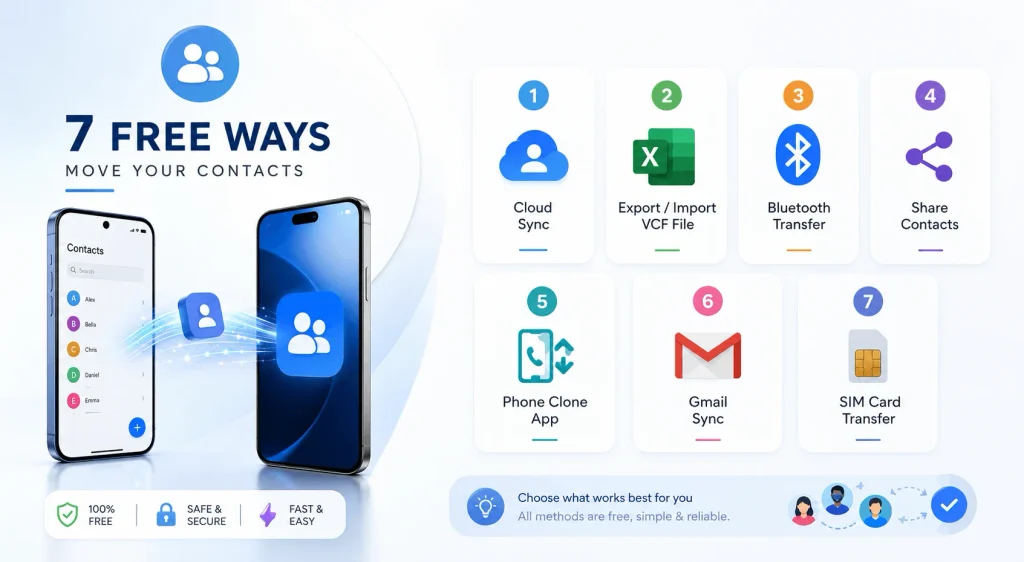
To transfer contacts to a new phone, the fastest method is syncing through your Google account (Android) or iCloud backup (iPhone) — both take under 10 minutes and are completely free. For cross-platform switches, use a vCard (VCF) file or Apple’s Move to iOS app. Below, I’ll walk you through all seven methods, step by step, so you don’t lose a single number.
Getting a new phone is exciting — until you realize you have to move over hundreds of contacts you’ve collected over the years. Whether you just picked up the new iPhone 17 or a fresh Android device, I’ve done this transfer more times than I can count, and honestly? It doesn’t have to be a headache.
In this guide, I’m going to walk you through every reliable way to transfer contacts to a new phone as of 2026, whether you’re switching from Android to iPhone, iPhone to Android, or just upgrading within the same ecosystem.
You’ll get step-by-step instructions, a comparison table so you can pick the right method fast, and a few tricks I wish someone had told me the first time I switched phones.
Let’s get into it.
Quick Comparison: Every Contact Transfer Method
Before diving into the steps, here’s how all seven methods stack up so you can pick the right one in seconds.
| Method | Best For | Time Needed | Includes Emails/Photos? | Free? |
|---|---|---|---|---|
| Google Account Sync | Android → Android | 2–5 min | ✅ Yes | ✅ Yes |
| iCloud Backup | iPhone → iPhone | 5–15 min | ✅ Yes | ✅ Yes |
| vCard (VCF) File | Any → Any (cross-platform) | 5–10 min | ✅ Yes | ✅ Yes |
| SIM Card | Any → Any (basic only) | 3–5 min | ❌ No | ✅ Yes |
| Move to iOS | Android → iPhone only | 10–20 min | ✅ Yes | ✅ Yes |
| Samsung Smart Switch | Any → Samsung | 5–15 min | ✅ Yes | ✅ Yes |
| Third-Party Software | Any → Any (PC-based) | 10–20 min | ✅ Yes | ⚠️ Freemium |
My recommendation: if you’re staying within the same ecosystem (Android to Android or iPhone to iPhone), always start with the free native sync option — it’s fastest and requires zero extra apps.
Why Transferring Contacts Properly Actually Matters
Here’s the thing — losing your contacts isn’t just annoying, it’s genuinely stressful, and it happens more often than people think.
According to Apple’s own support documentation, contacts aren’t stored on the SIM card by default on iPhones, which means a huge number of users assume their contacts are “safe” on the SIM when they aren’t — a common cause of accidental data loss during a phone switch.
Think about it. Your contact list holds your doctor’s number, your landlord, your kid’s school, maybe even that one client you’ve been chasing for months. If you skip a proper contact migration process, you risk losing all of that in one careless factory reset.
And trust me, re-adding 300 contacts manually is nobody’s idea of a good afternoon.
So before you wipe your old device or trade it in, let’s make sure your contact backup is airtight. (If you haven’t backed up your phone in general, check our guide on how to back up your Android or iPhone before an upgrade first.)
What You Need Before You Start
Quick gut-check before diving into the steps — a little prep saves you a lot of frustration later.
You’ll generally need:
- Your Google account login (for Android users)
- Your Apple ID (for iPhone users, running iOS 17 or later for best duplicate-detection support)
- A stable WiFi connection on both devices — if you’ve forgotten your network password, here’s how to find it
- Your old phone charged and unlocked
- A few minutes of patience — most methods take under 10 minutes
Got that? Good. Now let’s move into the actual step-by-step process.
Method 1: Sync Contacts Through Your Google Account (Android to Android)
If you’re going from one Android phone to another — say, upgrading to the Google Pixel 10 Pro — this is the easiest way to transfer contacts to a new phone, and it works almost automatically.
Here’s why I love this method: once it’s set up, you basically never have to think about it again. Your contacts just stay synced in the background.
Step-by-Step Guide
- On your old Android phone, go to Settings > Accounts.
- Tap your Google Account.
- Make sure Contacts Sync is toggled ON.
- Tap Sync Now to force an update.
- On your new Android phone, sign in using that same Google account during setup.
- Give it a minute — your contacts will sync automatically.
That’s genuinely it. No cables, no apps, no fuss.
Pro tip: Double-check under Settings > Accounts > Manage accounts that the sync date is recent. If it says “Never synced,” something’s off — tap sync manually before switching devices.
Method 2: Use iCloud Backup (iPhone to iPhone)
Switching iPhones? iCloud is your best friend here.
Apple built this system specifically so you wouldn’t have to think twice about moving your data. It’s clean, it’s fast, and it just works most of the time.
Here’s How to Do It
- On your old iPhone, open Settings, tap your name at the top.
- Tap iCloud, and make sure Contacts is switched ON.
- Scroll down to iCloud Backup and tap Back Up Now.
- Wait for the backup to finish (check the timestamp to confirm).
- On your new iPhone, during setup, choose Restore from iCloud Backup.
- Sign in with your Apple ID, select the backup, and let it restore.
Give it some time depending on your contact list size. Once it’s done, open the Contacts app to confirm everything landed safely.
Method 3: Transfer Contacts Using a vCard (VCF) File
Now, this one’s my go-to when I’m dealing with a cross-platform transfer — like Android to iPhone or vice versa.
A vCard file (also called a VCF file) is a universal contact format. Almost every phone understands it, which makes it perfect for jumping between ecosystems.
Steps to Export and Import via VCF
- On your old phone, open the Contacts app.
- Tap the three-dot menu, then go to Manage Contacts > Export.
- Choose Export to VCF file or “Share Contact” depending on your device.
- Send the file to yourself via email or save it to cloud storage.
- On the new phone, open the email or file, tap it, and choose Import.
- Your contacts should populate the Contacts app within seconds.
I’ll be honest — this method feels a little “manual,” but it’s incredibly reliable, and it works regardless of brand, OS, or carrier.
One catch: if you’re importing a huge file (500+ contacts), give your phone a moment to process it. Don’t panic if it’s not instant.
Method 4: Use a SIM Card to Move Contacts
This one’s old-school, but it still works — especially if you just need names and numbers, nothing fancy.
Keep in mind though, a SIM card transfer has real limits. Per Apple’s official support page, iPhones don’t store contacts on the SIM card at all — you can only import SIM contacts, not export to one. On Android, a SIM export only carries names and phone numbers, dropping emails, photos, and notes entirely.
How to Export Contacts to a SIM Card
- Open Contacts app on your old phone.
- Tap Menu > Import/Export.
- Select Export to SIM Card.
- Remove the SIM and insert it into your new phone.
- On your new device, go to Settings > Contacts > Import SIM Contacts.
- Choose where to save them (Google account, iCloud, or local storage).
Quick heads-up: if your new phone only supports an eSIM, this physical SIM method won’t apply — you’ll need to contact your carrier for an eSIM-specific transfer process instead.
Method 5: Move to iOS (Android to iPhone Only)
If you’re switching from Android to iPhone, Apple built an app just for this — appropriately called Move to iOS.
It’s designed to transfer more than just contacts (photos, messages, calendar events too), which makes it a solid all-in-one option for a full device switch.
Quick Setup Guide
- Download Move to iOS from the Google Play Store.
- Start setup on your new iPhone until you reach the Apps & Data screen.
- Choose Move Data from Android.
- On your Android phone, open Move to iOS and enter the code shown on your iPhone.
- Select Contacts from the list of data types.
- Wait for the transfer to complete — don’t use either phone during this step.
This method only works one direction (Android → iOS), so if you’re going the other way, skip ahead to Method 3.
Method 6: Samsung Smart Switch (For Samsung Users)
If your new phone is a Samsung, there’s a dedicated tool for you: Samsung Smart Switch.
It pulls data from practically any device — Android, iPhone, even some older feature phones — as long as the destination is a Samsung device.
Steps to Use Smart Switch
- Download Smart Switch on both devices (or use the built-in version on newer Samsung phones).
- Connect both phones via WiFi, cable, or Bluetooth.
- Select Contacts from the data categories.
- Tap Transfer and wait for confirmation.
I’ve used this one during a Samsung upgrade, and it handled everything — contacts, photos, even app data — without a hitch.
Method 7: Third-Party Transfer Software
If none of the above feel right, or you’re transferring between very different devices, third-party desktop tools can help you selectively move contacts with a single click.
These apps connect both phones to your computer and give you more granular control over exactly what gets copied — useful if you only want to migrate contacts and nothing else.
General Steps
- Download the software on your PC or Mac.
- Connect both your old and new phone via USB.
- Set your old phone as Source and your new phone as Destination.
- Check the Contacts box.
- Click Start Copy or Start Transfer.
These tools are especially handy for cross-platform transfers or when you want more control over what gets copied. Just note that most offer a free tier with limits, and full features often require a paid license.
Common Mistakes People Make (And How to Avoid Them)
Look, I’ve seen (and made) a few of these mistakes myself, so let me save you the trouble.
- Not syncing before switching devices — always double-check your sync date first.
- Relying only on SIM transfer — remember, it drops emails and extra fields.
- Skipping duplicate cleanup — syncing from multiple sources (Google and iCloud) can create duplicate entries. iOS 17 and later includes built-in duplicate detection, so run that after importing.
- Forgetting eSIM limitations — physical SIM tricks won’t work on eSIM-only phones.
- Not verifying the transfer — always open your Contacts app afterward and spot-check a few names before wiping your old phone.
For more on avoiding data loss during upgrades, see our related post on common phone migration mistakes.
Frequently Asked Questions
Is transferring contacts to a new phone free?
Yes, in most cases. Methods like Google sync, iCloud backup, VCF export, and SIM transfer are completely free and built into your phone’s existing settings — no extra software required.
How long does it take to transfer contacts?
Most methods take between 2 and 20 minutes, depending on how many contacts you have and your connection speed. Larger lists (500+) may take a bit longer to fully sync.
Can I transfer contacts without WiFi?
Yes — SIM card transfer and vCard file sharing don’t require WiFi, though cloud-based methods like Google or iCloud sync do need an internet connection.
Why are my contacts showing up duplicated?
This usually happens when contacts sync from two accounts at once, like Google and iCloud simultaneously. iOS 17+ includes a built-in duplicate merge tool to clean this up automatically.
Does SIM transfer include contact photos?
No. SIM cards only store names and phone numbers — no photos, emails, or notes get carried over, and per Apple’s documentation, iPhones can only import from a SIM, not export to one.
What if my new phone uses an eSIM?
The physical SIM method won’t work. You’ll need to contact your carrier for an eSIM-based transfer or use a cloud-based method like Google sync or iCloud instead.
Final Thoughts
Switching phones doesn’t have to mean losing years of saved numbers.
Whether you go with a simple Google account sync, an iCloud backup, a vCard file, or the comparison table above to pick the right tool, you now have seven solid, up-to-date ways to transfer contacts to a new phone safely in 2026.
My honest recommendation? Start with the native, built-in method for your device — it’s usually the fastest and completely free. Only reach for third-party software if you need more control or you’re doing a bulk cross-platform transfer.
Either way, take five minutes before you wipe that old phone. Future you will thank you.