
How to Find Your WiFi Password (Fast, 2026 Guide)

To find your WiFi password, check your device’s saved network settings (Windows, Mac, Android, or iPhone), log into your router’s admin panel, or look for the sticker on the back of your router. Every method below works whether you’ve connected to the network before or not, and most take under a minute.
Now let’s get into exactly how.
Losing your WiFi password is one of those small annoyances that feels way bigger than it should. You’re standing there, phone in hand, trying to connect a new device or help a friend get online, and suddenly you realize… you have no idea what your password is.
I get it. You’re not alone here. This happens to almost everyone at some point, and it’s genuinely not your fault — passwords get saved once, forgotten forever, and buried under years of muscle memory.
In this guide, I’ll walk you through every single way to find your WiFi password, whether you’re on Windows, Mac, Android, iPhone, or need to dig through your router admin panel directly. No fluff. Just the steps that work.
Quick Comparison: Which Method Is Fastest for You
Before diving into each platform, here’s a quick snapshot so you can jump straight to what applies to you.
| Method | Device Needed | Difficulty | Time Required |
|---|---|---|---|
| Windows Network Settings | Connected PC | Easy | Under 30 seconds |
| Windows Command Prompt | Any PC (saved network) | Medium | 1–2 minutes |
| Mac Passwords App | Connected Mac | Easy | Under 30 seconds |
| iPhone Settings | Connected iPhone | Easy | 10 seconds |
| Android Share/QR | Connected Android 10+ | Easy | 10 seconds |
| Router Admin Panel | Any browser + router login | Medium | 2–3 minutes |
| Router Sticker | Physical router access | Very Easy | Instant |
| Factory Reset | Physical router access | Hard | 5–10 minutes |
If you’ve never connected to the network on any device, skip straight to the router admin panel or sticker methods further down.
Why You Might Need to Find Your WiFi Password
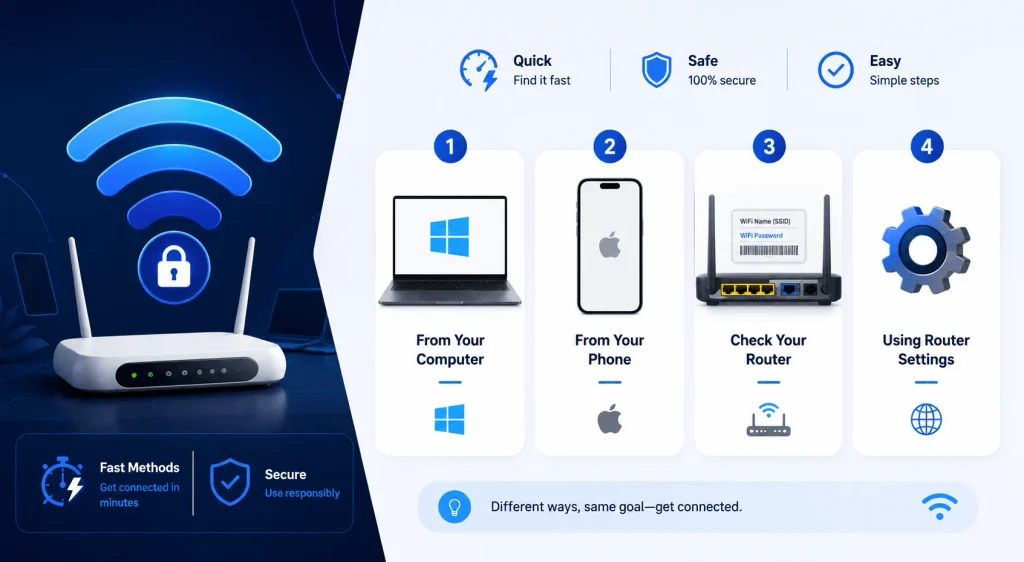
Before we jump into the how-to steps, let’s quickly talk about why this matters so much.
You might need your WiFi password recovery for a bunch of reasons — setting up a smart TV, onboarding a new laptop, or just helping a guest connect without shouting the password across the room. Whatever the reason, the good news is this: your password is almost always saved somewhere on a device you already own.
You just need to know where to look.
- Connecting a new phone, tablet, or laptop
- Setting up smart home devices (thermostats, cameras, speakers)
- Helping guests get online
- Troubleshooting a dropped connection
- Migrating to a new router
Now, let’s break this down device by device.
How to Find Your WiFi Password on Windows
Windows makes this pretty painless, actually, once you know where the setting lives.
There are two solid ways to do this — a click-through method for people who don’t love the command line, and a faster method using Command Prompt for anyone comfortable typing a command or two.
Method 1: Using Network Settings (No Typing Required)
This is the easiest route if you’re already connected to the network in question.
- Open Network & Internet settings
- Click Status, then head to the Network and Sharing Center
- Click on your WiFi network name
- Select Wireless Properties
- Click the Security tab
- Check the box labeled Show characters
And there it is. Your WiFi password appears right in front of you.
Method 2: Using Command Prompt (Works for Any Saved Network)
Here’s the thing — this method is genuinely more powerful because it works even for networks you’re not currently connected to, as long as your PC connected to them before.
- Open Command Prompt as an administrator
- Type
netsh wlan show profilesand hit Enter - Find the name of the network you need
- Type
netsh wlan show profile name="YourNetworkName" key=clear - Look for Key Content under Security settings
That’s your password, right there in plain text.
How to Find Your WiFi Password on a Mac
Mac users, you’re actually in a really convenient position here, because Apple stores everything through its built-in password manager.
On newer macOS versions, Apple moved this into the dedicated Passwords app, which makes the whole process feel a lot less technical than digging through Keychain Access.
Step-by-Step Guide
- Open the Passwords app on your Mac
- Click WiFi in the sidebar
- Select the network you’re looking for
- Hover over the dots next to Password
- Click to copy or reveal it
If you’re on an older macOS version, use Keychain Access instead:
- Press
Cmd + Spaceand search “Keychain Access” - Search for your network name
- Double-click the entry
- Check Show password
- Authenticate with your Mac’s admin credentials
Dealing with other Mac issues while you’re at it? Check out our guide on fixing slow boot times on Mac
Simple enough, right? According to Apple’s own support documentation, this method also works across devices using Universal Clipboard, which is handy if you’re moving a password from your Mac to your iPhone.
How to Find Your WiFi Password on iPhone or iPad
Apple made this shockingly easy starting with iOS 16.
- Go to Settings → WiFi
- Tap the (i) icon next to your connected network
- Tap Password
- Authenticate with Face ID or Touch ID
Boom. Password revealed.
This only works for networks your device has already joined, so if you’ve never connected to it, jump to the router methods below.
How to Find Your WiFi Password on Android
Android’s approach leans on QR codes, which honestly feels like one of the more underrated features in mobile settings.
- Open Settings
- Tap Connections (or Network & Internet)
- Tap your connected network
- Tap Share or the QR code icon
According to Android Police, Android 10 and later versions display both the password and a scannable QR code, which makes sharing WiFi with guests almost effortless — no typing required at all.
If your phone runs an older Android version, you might need to root the device or use a third-party app, which I wouldn’t recommend unless you really know what you’re doing.
How to Find Your WiFi Password Through the Router Admin Panel
Now here’s the method that works regardless of your device, your OS, or whether you’ve ever connected before.
This one goes straight to the source: the router itself.
Step-by-Step Guide
- Open a browser on any connected device
- Type your router IP address — usually
192.168.1.1or192.168.0.1 - Log in using your router admin username and password
- Navigate to Wireless, WLAN, or WiFi Settings
- Look for Wireless Security or Passphrase
Here’s a tip that trips people up constantly: your router admin password and your WiFi password are two completely different things. One lets you into the router’s settings; the other lets devices connect to your network. Mixing these up is one of the most common points of confusion, according to Software Testing Help’s breakdown of default router credentials.
If you’ve never changed your admin credentials, they’re often something as simple as “admin/admin” or “admin/password” — a security risk worth fixing once you’re in there. Forgotten or default router credentials are one of the most common reasons home users end up contacting ISP support, according to TeamViewer’s guide on WiFi password recovery, which is worth keeping in mind if you’re setting up a network for family members who might lose access down the line.
Special Cases: Mesh Routers, ISP-Supplied Routers, and Work WiFi
Most guides stop at traditional routers, but a lot of home networks today don’t work quite the same way.
Mesh Systems (Eero, Google Nest WiFi, TP-Link Deco)
Mesh routers have largely moved away from browser-based admin panels in favor of dedicated apps. Open the manufacturer’s app (Eero, Google Home, or Deco), tap your network, and the password is displayed directly in the app’s WiFi settings. There’s no IP address to type in — everything is managed through Bluetooth pairing and the app itself.
ISP-Supplied Routers (Xfinity, Verizon, Spectrum)
If your router came from your internet provider, skip the manual IP lookup and use their self-care app instead — MyVerizon, the Xfinity app, or your provider’s equivalent. These apps typically show your current network name and password on the main dashboard without requiring a router login at all.
Work or Enterprise WiFi
Office and enterprise networks usually don’t use a single shared password the way home networks do. Instead, they rely on individual login credentials tied to your employee account, managed through IT. If you’re struggling to connect on a work network, the fix isn’t finding a password — it’s contacting your IT department directly, since enterprise networks are configured differently by design.
What If You’ve Never Changed Your Default WiFi Password?
This one’s actually the easiest scenario of them all.
Flip your router over.
Most routers ship with a printed label on the bottom or back showing the default SSID (network name) and password. If you’ve never customized it, that sticker is still accurate.
Look for fields labeled:
- SSID / Network Name
- WiFi Password / WPA Key / Passphrase
- Admin Password (this is separate — don’t confuse it)
This sticker method remains the fastest option available, since it requires zero devices, zero commands, and zero login attempts.
What If Nothing Works?
Sometimes, despite trying everything, you’re still stuck.
Maybe no device has the password saved. Maybe the admin credentials were changed and forgotten too. If that’s you, there’s one last option.
Factory Reset
- Locate the small reset button on your router (usually recessed)
- Hold it down for about 10 seconds while powered on
- Wait for the router to restart
This restores the router to its factory default password, meaning you’re back to square one — but at least it’s a solvable square one.
Just know this wipes your custom network name, password, and any other settings you configured previously. You’ll need to set everything up fresh afterward, so treat this as your last resort, not your first move.
How to Avoid This Problem in the Future
Let’s be honest — nobody wants to go through this twice.
A few small habits make a massive difference here:
- Save your WiFi password in a password manager the moment you set or change it
- Write it down somewhere physical if you’re not using a digital manager (a sticky note near the router genuinely works)
- Enable QR code sharing on your phone so guests never need to type anything
- Regularly update your wireless security key to keep your network protected
Small effort now saves you a headache later. For more on strengthening your setup, see our guide on how to change your WiFi password and how to speed up a slow WiFi connection.
Wrapping Up
Finding a lost WiFi password feels stressful in the moment, but as you’ve seen, there’s almost always a way back in — whether that’s through your device’s saved network settings, your router’s admin panel, the sticker on the back of the hardware, or, worst case, a factory reset.
Pick the method that fits your situation, follow the steps above, and you’ll be back online in minutes. And once you’ve found it? Save it somewhere safe this time.
Frequently Asked Questions
What is my WiFi password if I never changed it?
Check the sticker on your router. The default password is usually printed there alongside the network name.
Can I find my WiFi password without admin access?
Yes — if you’re already connected on a Windows, Mac, or Android 10+ device, you can view it through your device settings without needing router admin credentials.
Is the router admin password the same as the WiFi password?
No. The admin password logs you into the router’s settings page. The WiFi password lets devices join your network. They’re separate credentials.
How do I share my WiFi password without saying it out loud?
Use the built-in QR code sharing feature on Android 10+ or iOS, or Universal Clipboard between Apple devices.
What do I do on a mesh network like Eero or Google Nest WiFi? Open the manufacturer’s app rather than a browser — the password is shown directly in the app’s network settings.
What do I do if nothing works?
Perform a factory reset on your router to restore the original default password, then reconfigure your network from scratch.