What Is an SSID? Complete Guide (+ How to Find Yours) 2026

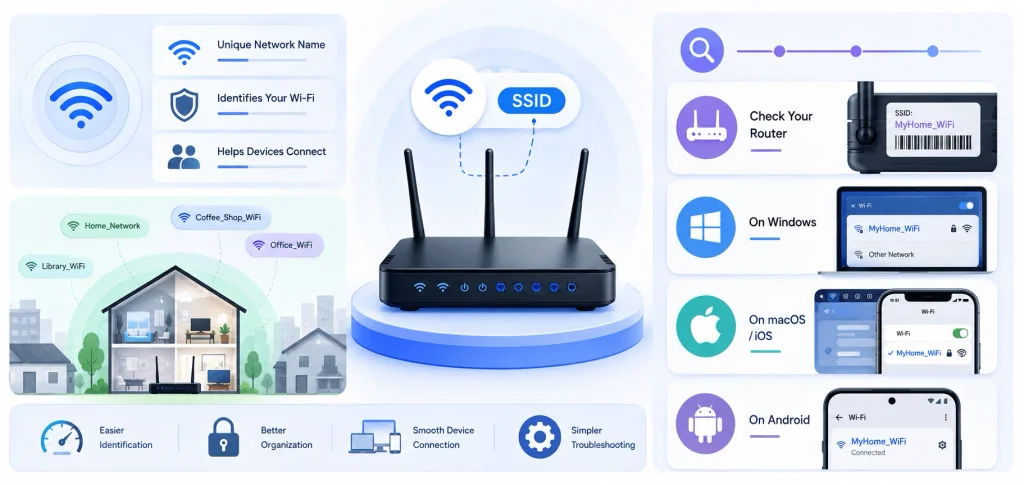
An SSID (Service Set Identifier) is the name your wireless router broadcasts so nearby devices can find and connect to your Wi-Fi network. It’s the label you see when you open your Wi-Fi settings, things like “Netgear54” or “HomeWiFi_5G.” Every device on your network relies on this name to know which signal belongs to you.
You’ve seen an SSID a hundred times without realizing it. But here’s the thing: it isn’t just a label. It plays a real role in how your devices connect, how secure your home network is, and how easily strangers can identify your setup. Let’s break this down properly.
What Does SSID Actually Stand For?
SSID stands for Service Set Identifier, and according to the IEEE 802.11 wireless standard, it’s a unique text string that identifies a specific wireless network.
Think of the 802.11 standard as the rulebook every Wi-Fi device follows. It’s what makes sure your iPhone, your laptop, and your smart fridge can all understand each other on the same network, regardless of who made them.
An SSID can be made up of letters, numbers, dashes, periods, and even spaces. It’s case-sensitive too, which trips a lot of people up. “HomeWiFi” and “homewifi” are treated as two completely different networks by your devices.
There’s a hard limit here: an SSID can be a maximum of 32 characters, per the 802.11 standard as confirmed by whatismyip.com. No exceptions. So if you’re planning to rename your network to something clever, you’ve got 32 characters to work with.
Where Does the SSID Come From?
Your router or access point generates and broadcasts the SSID automatically the moment it powers on. It doesn’t need you to do anything.
Most manufacturers set a default SSID before the device leaves the factory. That’s why you’ll see names like “TP-Link_4A2B” or “ASUS_Guest” out of the box. It’s just the brand name plus a random string, printed on a sticker on the bottom of the router.
How Does an SSID Actually Work?
An SSID gets broadcast through a beacon frame, a small signal your router sends out at regular intervals to announce its presence. According to WhatIsMyIP’s technical breakdown, this broadcast happens through beacon frames sent as defined by the IEEE 802.11 standard.
Your phone or laptop picks up these beacon frames constantly in the background. That’s how your Wi-Fi list populates when you tap the Wi-Fi icon. Every network you see is broadcasting its SSID over and over, dozens of times per second.
Once you tap a network, your device sends a connection request. If the network is secured, you’ll need a password, or in enterprise setups, 802.1X authentication. Once that handshake completes, you’re on.
Visible vs. Hidden SSID
Most routers broadcast their SSID publicly. That’s a visible SSID, and it’s why you can open your settings and pick your network from a list without typing anything.
A hidden SSID stops announcing its name to the world. To connect, you have to manually type the exact network name yourself.
Hiding your SSID feels like a security move, but it’s mostly cosmetic. According to NordVPN’s breakdown, hiding your SSID gives you a small privacy bump at best. Anyone using basic network scanning tools can still detect hidden networks. Don’t rely on this alone for security.
SSID vs BSSID: What’s the Difference?
SSID is the network name you see and interact with. BSSID (Basic Service Set Identifier) is the actual MAC address of the specific access point radio broadcasting that name.
Picture a chain of coffee shops, all called “Bean There.” That’s your SSID: one name, shared across every location. Each individual shop has its own street address though. That’s your BSSID.
Here’s a side-by-side breakdown:
| Feature | SSID | BSSID |
|---|---|---|
| Full name | Service Set Identifier | Basic Service Set Identifier |
| Format | Text string, up to 32 characters | MAC address (12 hex digits) |
| Purpose | Human-readable network name | Identifies one physical access point |
| Scope | Can span multiple access points | Unique to a single access point |
| Example | “HomeWiFi_5G” | 00:1A:2B:3C:4D:5E |
| Who uses it | End users connecting to Wi-Fi | Devices and network admins behind the scenes |
If you’ve got a mesh Wi-Fi system with three access points spread around your house, all using the SSID “MyHomeNetwork,” each of those three access points still has its own unique BSSID under the hood, per IT GOAT’s mesh network analysis. Your devices use the BSSID behind the scenes to figure out which physical access point gives the strongest signal, even though you only ever see one SSID.
This distinction matters for anyone getting into networking, IT support, or wardriving research, where identifying the exact physical device matters more than the friendly name.
SSIDs and Frequency Bands (2.4GHz vs 5GHz)
Most modern routers broadcast two separate SSIDs, one for each frequency band they support. You’ll typically see something like “HomeWiFi” for the 2.4GHz band and “HomeWiFi_5G” for the 5GHz band.
The 2.4GHz band reaches farther through walls but runs slower. The 5GHz band is faster but has a shorter range. Some newer routers merge both bands under a single SSID and let the router decide which band each device connects to, a feature usually called “band steering.”
If you see two networks from the same router, that’s normal. Pick whichever gives you a stronger signal for the device you’re using.
Why Your SSID Matters More Than You Think
Your SSID isn’t just cosmetic. It affects your day-to-day Wi-Fi experience in a few concrete ways.
- It prevents connection confusion. If two nearby networks share the same SSID, your device might latch onto the weaker signal without you realizing it, as Reolink notes in its SSID guide.
- It’s your first line of network hygiene. A default SSID broadcasting your router’s brand and model tells anyone nearby exactly what hardware you’re running.
- It shapes how you manage multiple networks. A guest network, an IoT network, and your main household network are much easier to keep straight with distinct names.
How to Find Your SSID (Step-by-Step)
Check Physical and On-Device Sources
- Check the router sticker. Flip your router over. Most list the default network name and password right there.
- Open your device’s Wi-Fi settings. On Windows, click the Wi-Fi icon in the taskbar. On Mac, click the Wi-Fi icon in the menu bar. On mobile, go to Settings > Wi-Fi.
- Look at your currently connected network. It’s usually labeled “Connected” above or below the name.
Check the Router Admin Panel
- Log into your router’s admin panel if you’ve changed the SSID and forgotten it. Type your router’s IP address (often 192.168.1.1 or 192.168.0.1) into a browser, log in, and check the wireless settings tab.
- Use a network scanning app like inSSIDer or WiFi Explorer if you want to see every SSID broadcasting nearby, not just your own.
How to Change Your SSID (And Why You Should)
Changing your SSID is one of the easiest security upgrades available, and most people never bother.
- Log into your router’s admin panel using its IP address.
- Navigate to the Wireless or Wi-Fi Settings section.
- Find the field labeled “SSID” or “Network Name.”
- Type in your new name. Keep it under 32 characters, and avoid personal information like your last name or address.
- Save the settings and reconnect all your devices using the new name.
Don’t get too clever here. Something memorable but not personally identifying works best. Skip anything that reveals your address, apartment number, or full name.
Common SSID Mistakes to Avoid
- Keeping the default SSID. It broadcasts your router’s brand and model, making targeted attacks easier.
- Using personal information in the name. Your name, apartment number, or phone number has no business being part of a network name.
- Relying only on a hidden SSID for security. As covered above, this offers minimal protection on its own.
- Duplicating another nearby SSID. This causes connection confusion for both networks.
- Skipping a strong password because the SSID feels “secure enough.” The SSID and the password do completely different jobs. Don’t confuse the two.
For a deeper walkthrough on locking down your whole home network, not just the name, check out our Checksum Error guide if you’re troubleshooting broader connectivity issues, or our Dropbox connection error guide if renaming your SSID triggered sync errors on connected apps.
Frequently Asked Questions
Can two networks have the same SSID?
Yes, technically two networks can share an SSID. But devices might struggle to tell them apart, sometimes connecting to the weaker or wrong one automatically.
Does changing my SSID disconnect my devices?
Yes, temporarily. Every device connected to the old network name needs to reconnect using the new name and password.
Is a hidden SSID more secure?
Only slightly. It adds minor privacy, but skilled attackers can still detect hidden networks with the right tools.
What’s the maximum SSID length?
32 characters, per the 802.11 standard. There’s no strict minimum.
Should I use my real name as my SSID?
No. Skip anything personally identifiable. Pick something memorable but generic instead.
Why do I see two SSIDs from one router?
Most routers broadcast separate SSIDs for the 2.4GHz and 5GHz bands. Some merge them into one name using band steering.
Wrapping This Up
Your SSID is a small piece of your network’s identity, but it carries more weight than most people give it credit for. It’s how your devices find your network, how you distinguish your Wi-Fi from your neighbor’s, and it’s one of the easiest things you can tweak to strengthen your home network’s security posture.
Take five minutes today. Log into your router, check your current SSID, and change it if it’s still sitting on the factory default. Small step, but it genuinely matters.