
How to Print From iPhone: Step-by-Step Guide (2026)

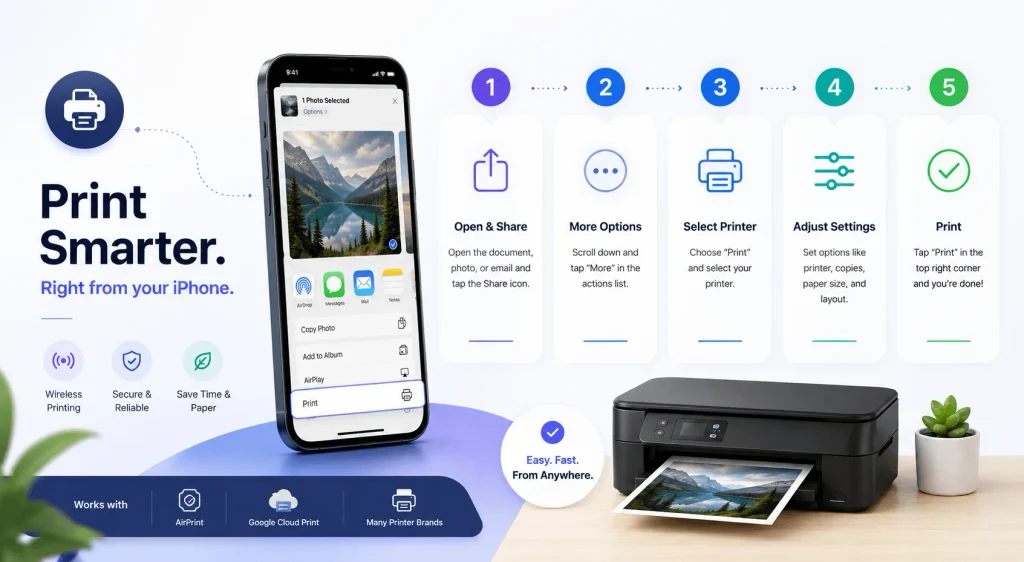
To print from iPhone, open the app with your file, tap the Share button, scroll down and tap Print, then select an AirPrint printer from the list. This works wirelessly over Wi-Fi in under 30 seconds — no cables, no drivers, no extra apps required. If your printer doesn’t support AirPrint, you can still print using a manufacturer app, Bluetooth, or a cloud printing service, all of which I cover below.
I’ve tested this process myself on iOS 26.6, and the whole thing — from opening Photos to hearing the printer whir to life — took me about 45 seconds. Let me walk you through every method, step by step, so you’re never stuck again.
What Is AirPrint and Why It Matters
Before you print anything, you need to understand the technology that makes it all work. This section explains the basics in plain English so you’re not confused later.
Honestly, AirPrint is the backbone of iPhone printing. According to Apple’s official support documentation, it’s Apple’s built-in wireless printing protocol, and it comes pre-installed on every iPhone — no downloads, no drivers, nothing extra required.
Here’s the deal: if your printer is AirPrint-enabled, you can send a print job in seconds. If it’s not, don’t panic — I’ll show you workarounds further down. If you’ve had connection trouble before, it’s also worth checking our guide on fixing iPhone Wi-Fi problems, since a shaky connection is often the real culprit behind failed print jobs.
AirPrint works over Wi-Fi, and that’s important. It does not work over cellular data, and it doesn’t support wired or USB connections. So first things first — check that both your iPhone and printer are joined to the same Wi-Fi network.
Quick gut-check: not sure if your printer supports AirPrint? Look for an “AirPrint” badge on the box, or check your printer’s settings menu. You can also confirm compatibility straight from Apple’s list of AirPrint-compatible printers. And if you’re troubleshooting a “printer not found” error, it often comes down to your network name — see our guide on what is an SSID to understand why matching network names matters so much for AirPrint.
AirPrint vs. Other Printing Methods (Comparison Table)
Not sure which method fits your setup? Here’s a quick side-by-side comparison before you commit to one approach.
| Method | Setup Difficulty | Requires an App? | Best For |
|---|---|---|---|
| AirPrint | Very easy | No | Most home/office printers on the same Wi-Fi |
| Bluetooth | Easy | Yes (manufacturer app) | Portable/thermal printers |
| Wi-Fi Direct | Moderate | No | Newer printers without a router nearby |
| USB (Lightning/USB-C) | Hard | Yes (third-party app) | Older, USB-only printers |
| Cloud Printing | Easy | Yes (ezeep, HP ePrint, etc.) | Remote printing or managing multiple printers |
As you can see, AirPrint wins on convenience nearly every time — which is exactly why I’d try it first before touching any of the alternatives.
How to Print From iPhone Using AirPrint (Step-by-Step)
Okay, this is the part you actually came for. I’m going to break this down into dead-simple steps, because nothing is more frustrating than vague instructions.
Follow along:
- Connect both devices to the same Wi-Fi network. This is non-negotiable. Go to Settings > Wi-Fi on your iPhone and confirm the network name matches your printer’s.
- Open the app containing whatever you want to print — Mail, Photos, Safari, Files, Pages, you name it.
- Tap the Share button (that little square with the arrow pointing up) or the Actions menu, depending on the app.
- Scroll down and tap Print. If you don’t see it right away, swipe up — sometimes it’s hiding.
- Tap “No Printer Selected”, then choose your AirPrint printer from the list.
- Adjust your print settings — number of copies, page range, single vs. duplex printing — whatever fits your job.
- Tap Print in the top-right corner, and you’re done.
Seriously, that’s it. Within a few seconds your printer should spring to life. According to Apple’s support page, this process is identical across iPhone and iPad, and I confirmed it myself on iOS 26.6 — no version-specific quirks to worry about right now.
Printing Specific Content Types
Not every print job looks the same, though, and that trips people up. Let me break down a few common scenarios so you know exactly what to expect.
- Printing photos: Open the Photos app, select your image, tap Share, scroll to Print, pick your paper size and quality setting (I recommend “Photo” or “High Quality” for the best results).
- Printing emails: In Mail, open the message, tap the reply arrow at the bottom, and select Print. For attachments, tap the file first, then hit Share > Print.
- Printing from Safari: Load the webpage, tap Share, and scroll to Print — handy for boarding passes, receipts, or articles you want in hard copy.
- Printing PDFs and Files app documents: Open the file, tap Share, then Print, just like everywhere else.
The pattern repeats itself app to app, which honestly makes life a lot easier once it clicks. If you’re printing from a newer device, our iPhone 16 Pro Max guide covers the Share sheet layout and other iOS specifics worth knowing.
What to Do If AirPrint Isn’t Working
Now here’s where things get a little annoying. Sometimes AirPrint just… doesn’t cooperate. I get it — nothing kills momentum faster than a printer that refuses to show up on the list.
If your iPhone says “No AirPrint Printers Found,” don’t throw your printer out the window just yet. This is a genuinely common issue, and there’s almost always a fix.
Common Causes and Fixes
Let’s go through the usual suspects one by one.
1. Different Wi-Fi bands. Believe it or not, this trips up more people than anything else. Many routers broadcast separate 2.4GHz and 5GHz networks. Your iPhone might be hopping onto the 5GHz band while your printer sits on 2.4GHz — technically the same router, but AirPrint treats them as separate networks. Check your printer’s network settings and make sure the network name matches your iPhone’s exactly.
2. Airplane Mode reset. This sounds too simple to work, but it genuinely does. Flip on Airplane Mode, wait 10 seconds, then turn it back off. This forces your iPhone to fully reconnect to Wi-Fi, which — according to The Droid Guy’s 2026 troubleshooting guide — refreshes the network discovery process that finds nearby printers.
3. Restart everything. I know, I know — the classic “turn it off and on again.” But power-cycling your printer, your router, and your iPhone resolves a surprising number of connectivity hiccups.
4. Bonjour/mDNS issues. AirPrint relies on a discovery protocol called Bonjour (mDNS) to find printers on your local network. If this service gets interrupted — often by outdated router firmware — your printer simply won’t appear, even if everything else looks fine.
5. Check your printer for physical issues. Sounds obvious, but low ink, paper jams, or error lights can quietly block AirPrint from connecting properly.
6. Update everything. Outdated iOS or outdated printer firmware can absolutely break AirPrint. As of writing, Apple lists iOS 26.6 as the current release — a quick software update fixes more issues than you’d expect.
If you’ve tried all of that and you’re still stuck, SwitchingToMac has a solid deep dive with eleven separate troubleshooting angles worth exploring.
How to Print From iPhone Without AirPrint
So what happens if your printer just doesn’t support AirPrint at all? This happens more often than you’d think, especially with older or budget printer models. Don’t worry — you’ve still got options.
Option 1: Manufacturer Apps
Most major printer brands built their own iPhone apps specifically to fill this gap. These typically add extra features too, like scanning and ink monitoring.
- HP printers → HP Smart app
- Canon printers → Canon PRINT Inkjet/SELPHY app
- Epson printers → Epson iPrint
- Brother printers → Brother iPrint&Scan
Just download the relevant app from the App Store, connect it to your printer (usually via Wi-Fi setup within the app), and print directly from there. PrintGuides’ 2026 comparison is a solid resource if you want brand-specific screenshots.
Option 2: Bluetooth Printing
Some printers — especially portable and thermal printers — support Bluetooth instead of Wi-Fi. If yours does, turn on Bluetooth on both your iPhone and printer, pair them, and print through the manufacturer’s dedicated app. Keep in mind that, as iTech Guides points out, Bluetooth support doesn’t automatically make a printer AirPrint-compatible — you’ll still need the right app.
Option 3: Wi-Fi Direct
Wi-Fi Direct lets your iPhone connect straight to the printer’s own Wi-Fi signal, no router required. Enable it on your printer, then join that network from your iPhone’s Wi-Fi settings just like you would any other network.
Option 4: USB Connection (With a Catch)
Here’s something a lot of people don’t realize — iPhones don’t natively support USB printing. There’s no built-in workflow for it. If you’re determined to use a USB-only printer, you’ll need a third-party app plus a Lightning-to-USB or USB-C adapter, and honestly, it’s often more hassle than it’s worth.
Option 5: Cloud Printing Services
If you manage multiple printers, or you want to print remotely, a cloud printing service might be your best bet. Services like ezeep let you print to virtually any printer — Wi-Fi, USB, or otherwise — by routing the print job through the cloud instead of a direct local connection.
Manufacturer cloud services work similarly:
- HP ePrint
- Epson Connect
- Canon Cloud Printing Gateway
Each one assigns your printer a unique email address, so you can literally email a document and have it print — from anywhere, even outside your home network. If you’re building out your Apple accessory setup at the same time, check our AirPods Pro guide for another piece of the ecosystem worth optimizing.
How to Cancel a Print Job on iPhone
Sent something to print by mistake? It happens to the best of us. Luckily, canceling is quick.
Here’s how:
- Swipe up (or double-press the Home button on older iPhones) to open the App Switcher.
- Look for Print Center — it appears automatically while a job is in progress.
- Tap it, then select Cancel Printing.
Done. Your job stops immediately, and you can start fresh if needed.
Frequently Asked Questions
Do I need extra apps to use AirPrint?
Nope — it’s built right into iOS. No downloads required.
Can I use AirPrint over cellular data?
No, AirPrint strictly requires a shared Wi-Fi connection between your iPhone and printer.
Which apps support AirPrint?
Most native apps do — Mail, Photos, Safari, Files, Pages — plus plenty of third-party apps from the App Store.
How do I know if my printer supports AirPrint?
Check the printer’s manual, look for an AirPrint badge, or check Apple’s official compatible printers list.
Can I print double-sided from my iPhone?
Yes, as long as your printer supports duplex printing — the option will appear automatically in your print settings.
Final Thoughts
At the end of the day, printing from iPhone really isn’t complicated once you understand how AirPrint works and what your backup options are. Start with AirPrint — it’s fast, wireless, and requires zero setup. If that doesn’t pan out, lean on your printer manufacturer’s app, or consider a cloud printing service if you print often or remotely.
I hope this guide saved you the headache I went through the first time I tried figuring this out myself. Bookmark it, share it with a friend who’s stuck, and you’ll never have to Google “why won’t my iPhone find my printer” again.