YouTube Transcript Generator: Full 2026 Guide

A YouTube video transcript generator converts spoken audio from any YouTube video into readable text, using either YouTube’s native captions or AI-powered speech recognition. You paste a link, get text in seconds, and unlock better accessibility, stronger SEO, and easy content repurposing — all from one simple tool.
I’ll be honest with you — I used to ignore transcripts completely.
I thought they were just for accessibility nerds and hardcore researchers. Boy, was I wrong.
Once I started using a YouTube transcript generator for my own content, everything changed. My blog posts got easier to write. My videos got more search traffic. And honestly? I started understanding my own content better.
So in this guide, I’m going to walk you through exactly what a transcript generator does, why you need one in your toolkit, and how to use one — step by step — starting today.
What Is a YouTube Video Transcript Generator, Really?
Let’s start simple, because this concept trips up more people than it should.
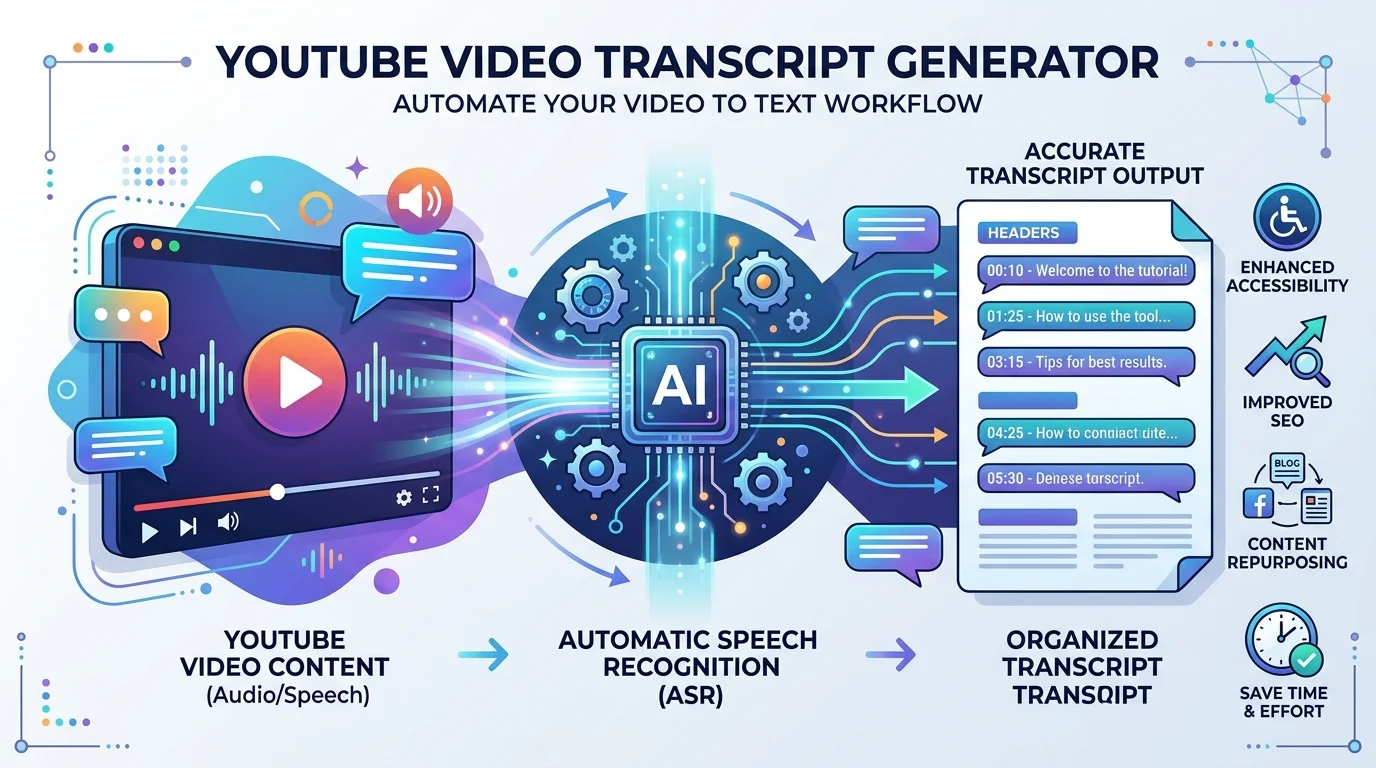
A video transcript generator is a tool that converts the spoken audio in a YouTube video into readable text. You paste in a link, and within seconds, you get a full transcript — sometimes with timestamps, sometimes without.
Definition: A YouTube video transcript generator is a web-based or browser-extension tool that extracts or transcribes the spoken content of a YouTube video into text, typically exportable as TXT, SRT, or VTT files.
Some tools only pull captions that YouTube already generated. Others go further, using automatic speech recognition to transcribe videos even when captions are disabled entirely. That distinction matters more than you’d think, so let’s break it down.
Why This Distinction Matters
Here’s the thing — not every video has captions turned on. If you’re relying on a basic tool, you’ll hit a wall constantly.
That’s why the better generators (like the ones I compare below) use AI transcription instead of just scraping existing subtitles. It means you get a transcript no matter what — captions or no captions.
Why You Should Actually Care About Transcripts
Okay, real talk. Why does this matter for you specifically?
Three words: accessibility, video SEO, and content repurposing. Let me break each one down individually, because they all stack together beautifully once you start using them.
1. Accessibility Isn’t Optional Anymore
You’ve probably heard this stat before, but it’s worth repeating.
Over 1.5 billion people globally live with hearing loss. That’s not a small niche audience — that’s a massive chunk of your potential viewers.
Adding closed captions and transcripts isn’t just thoughtful. It’s increasingly expected under standards like WCAG compliance. And if you’re running a business channel, that compliance piece protects you legally too.
2. Transcripts Are a Massive SEO Lever
Here’s something a lot of creators completely miss.
Search engines can’t “watch” your video. They can’t hear what you’re saying. But they can read a transcript.
That means when you add a transcript, you’re handing Google and YouTube more indexable text to rank for relevant keywords. That’s a direct video SEO win, and it’s one of the easiest wins available today.
I’ve seen this play out myself — videos with clean, keyword-optimized transcripts consistently outrank videos without them, all else being equal.
3. Repurposing Content Becomes Effortless
Once you have a transcript, you basically have a first draft of:
- A blog post
- A LinkedIn article
- An email newsletter
- Social media captions
- A lead magnet or PDF guide
You’re not starting from scratch anymore. You’re editing instead of creating from nothing.
This alone is worth the five seconds it takes to generate a transcript.
The Real Numbers Behind Captions and Transcripts
I don’t want you to just take my word for it. Let’s look at the data — and I’ll flag when each stat is from, so you know exactly how current it is.
- Videos with captions saw a 12% higher engagement rate on average (Facebook research, 2022).
- Captions boost brand affinity by 95%, recall by 58%, and likability by 31% (Wistia, 2025).
- 80% of people are more likely to watch an entire video when it’s captioned, compared to videos without.
Honestly? These numbers alone should convince you. But here’s the catch —
YouTube’s Auto-Captions Aren’t Perfect
You need to know this before you rely on them blindly.
YouTube’s auto-generated captions only reach around 61.92% accuracy at best, while properly done transcripts can hit closer to 99% accuracy. That’s a huge gap, and it’s exactly why a dedicated transcript generator tool — one built specifically for extraction and cleanup — beats relying on YouTube’s native captions alone.
Comparing the Top YouTube Transcript Generators
Not all tools are created equal, so I put together a quick side-by-side to save you the research time.
| Tool | Works Without Captions | Export Formats | AI Summary | Sign-Up Required |
|---|---|---|---|---|
| Tactiq | Limited | TXT | No | No |
| NoteGPT | Yes | TXT | Yes | No |
| WayinVideo | Yes | TXT, SRT, VTT | Yes | No |
| OpusClip | Yes | TXT | Yes | No |
| YTTranscript.AI | Yes | TXT, SRT, VTT | Yes | No |
If you want a deeper look at how an AI-assisted learning and note-taking workflow can pair with transcripts, my breakdown of the NoteGPT AI learning assistant covers that in more detail.
How to Generate a YouTube Transcript: Step-by-Step
Alright, let’s get practical. Here’s exactly how you do this, from start to finish.
Step 1: Copy your YouTube video link. Grab the URL from the address bar or the “Share” button.
Step 2: Paste the link into your transcript tool. Tools like Tactiq, WayinVideo, and NoteGPT all work the same basic way — paste and go.
Step 3: Click generate. Within seconds, your transcript text appears on screen, often with timestamps included.
Step 4: Export in your preferred format. Most tools let you export as TXT, SRT, or VTT — depending on whether you need plain text or subtitle files.
Step 5: Edit for accuracy. Don’t skip this. Even the best AI transcription tools make mistakes, especially with jargon, accents, or overlapping speech.
Step 6: Repurpose the content. Turn it into a blog post. Pull quotes for social media. Build an email sequence. If you’re also editing the video itself, it’s worth pairing this workflow with a proper AI video editor so your captions and edits stay in sync.
Choosing the Right Transcript Generator for You
Not sure which tool fits your workflow? Here’s what I’d personally look for, in order of importance:
- Works without existing captions (uses real AI transcription, not just scraping)
- Multiple export formats (TXT, SRT, VTT minimum)
- Timestamp support for easy navigation
- Built-in AI summarization — a huge time-saver
- No sign-up required, at least for basic use
Frequently Asked Questions
Is it legal to transcribe someone else’s YouTube video?
Generally, transcribing a publicly available YouTube video for personal use, research, or commentary falls under fair use in most jurisdictions. However, republishing large portions of someone else’s transcript without permission or attribution can raise copyright concerns, so always credit the original creator.
What’s the most accurate free YouTube transcript generator?
Accuracy varies by tool and audio quality, but AI-powered options like NoteGPT, WayinVideo, and OpusClip tend to outperform YouTube’s native auto-captions, which cap out around 61.92% accuracy.
Can I generate a transcript if the video has no captions at all?
Yes. Tools that use AI-based speech recognition (rather than scraping existing captions) can transcribe audio directly, even when a video has no subtitles or closed captions enabled.
Do transcripts actually help with SEO?
Yes. Since search engines can’t “watch” a video, a transcript gives them indexable text to match against relevant search queries, which can improve your video’s visibility in both Google and YouTube search.
What file formats should I export my transcript in?
TXT for blog posts and notes, SRT or VTT if you need timed subtitle files for video captioning.
Should You Actually Use One? Yes — Here’s Why
Look, I get it. Adding “one more tool” to your workflow can feel like a hassle.
But this isn’t like every other tool. A transcript generator takes seconds to use and pays off in accessibility, SEO, and repurposed content for months afterward.
If you’re serious about growing your channel, ranking higher in search, and reaching viewers who can’t (or won’t) watch with sound on — this is one of the lowest-effort, highest-return tools you can add to your process today.
So next time you upload a video, don’t skip the transcript step.
Paste the link. Generate the text. Watch what happens to your reach.